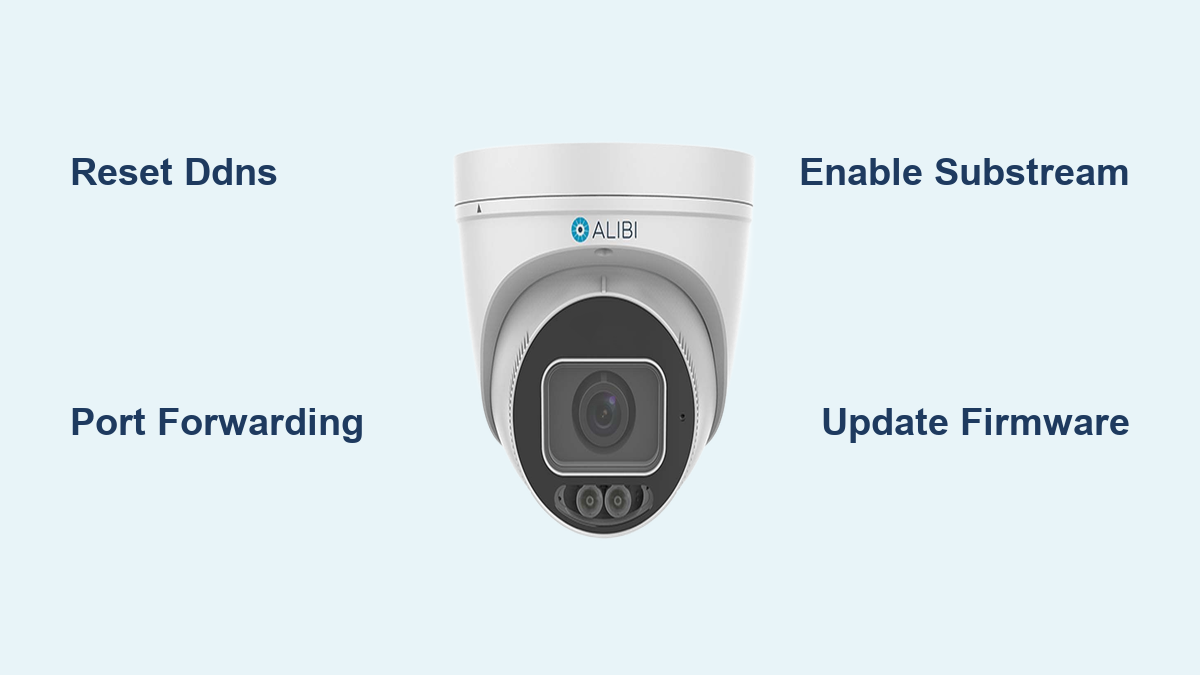

If your Alibi security camera shows as offline remotely but works locally, or your NVR keeps rebooting in a loop, you’re not alone. These are among the most common issues reported by Alibi system users, especially after internet changes, firmware updates, or power surges. The good news? Most problems have clear fixes once you know where to look.
This guide cuts through confusion with step-by-step troubleshooting for connectivity failures, boot loops, blank preview thumbnails, and storage limitations. You’ll learn how to restore remote access, stabilize your NVR, fix video display issues, and extend recording time using proven methods from Alibi support and real-world tech reports.
Fix Alibi Camera Offline Remotely
When your Alibi camera appears offline in the app but works on local monitors, the issue is almost always network-related, not hardware failure. This commonly happens after switching internet providers, replacing routers, or losing DDNS registration.
Confirm Local Video First
Before troubleshooting remotely, verify that cameras are live on the NVR locally. Connect a monitor via HDMI or VGA and check if all cameras display video. If yes, the problem is remote access only. If no, check power, cables, and network switches.
A working NVR will show live thumbnails on the local display. No signal means deeper connectivity issues exist.
Reconfigure DDNS in NVR
Alibi systems rely on Dynamic DNS (DDNS) to maintain remote access when your ISP assigns a changing public IP. Follow these steps to reset DDNS.
Steps to reset DDNS:
- Log into NVR web interface using the NVR’s IP address in your browser.
- Go to Network Settings then DDNS.
- Select a supported provider like No-IP or DynDNS.
- Re-enter your DDNS account username and password.
- Save settings and reboot the NVR.
Common mistake: Using an expired or inactive DDNS account. Create a free account at noip.com if needed.
Set Up Port Forwarding
Your router must forward specific ports to the NVR’s local IP address.
| Service | Default Port | Purpose |
|---|---|---|
| HTTP | 80 or 8080 | Web access |
| RTSP | 554 | Streaming |
| P2P | 37777 | App connection |
| ONVIF | 8899 | Integration |
How to forward: Find the NVR’s local IP through Main Menu, Network, TCP/IP. Log into your router and navigate to Port Forwarding or Virtual Servers. Add rules mapping external ports to the NVR IP. Use 8080 instead of 80 if your ISP blocks port 80.
Pro tip: Enable UPnP on the router for automatic port mapping, but manual setup is more reliable.
Test Direct IP Access
Bypass the app temporarily to verify remote access is working. Get your public IP by searching “what is my IP” online. From outside your network, enter http://public_ip:port. For example: http://123.45.67.89:8080.
If the NVR login page loads, remote access is working. Reconnect the Alibi Connect or Alibi Vision app.
Re-Login to Alibi App
Sometimes the app loses sync after network changes. Fix this by opening the Alibi app, tapping Settings then Log Out. Clear the app cache on Android through Settings, Apps, Alibi Connect, Storage, Clear Cache. Re-login with your credentials and wait 2 to 5 minutes for devices to re-register.
Note: Some users report needing to delete and reinstall the app after ISP changes.
Resolve Alibi NVR Boot Loop Issues

An Alibi NVR stuck in a continuous reboot cycle, powering on, showing the logo, then restarting is often caused by firmware incompatibility or network conflicts, not hardware failure.
Diagnose Firmware Conflicts
A key cause is mixing Alibi Witness (HikVision-based) and Alibi Vigilant (UniView-based) cameras on the same NVR. These are different OEM platforms that do not play well together after updates.
Symptoms of incompatibility include boot loop starting after camera firmware update, NVR boots fine alone but crashes when cameras are connected, and only certain camera models trigger the reboot.
Update NVR Firmware First
Always update the NVR before cameras to avoid version mismatches. Visit alibisecurity.com/support, search for your NVR model, and download the latest firmware (.bin file). Copy it to a USB drive formatted as FAT32. Insert into the NVR, go to Maintenance, Upgrade, Local Upgrade, select the file, and start the update.
Time estimate: 5 to 10 minutes. Do not power off during the update.
Isolate Problematic Cameras
Use a process of elimination to find the culprit. Disconnect all cameras from the NVR and power it on. Does it boot fully? If no, possible hardware failure requires an RMA. If yes, reconnect cameras one at a time and note which camera triggers the reboot.
Case example: One user found that even a single Witness camera caused rebooting when added to a Vigilant NVR.
Prevent Network Loops
A broadcast storm from miswired network gear can crash the NVR. Check for dual NICs on the NVR both connected to the same switch, daisy-chained unmanaged switches, or disabled STP (Spanning Tree Protocol).
Fix these issues by disabling unused NIC in Network, Interface settings. Enable STP on all managed switches. Avoid connecting the NVR to multiple switches unless using LACP or failover.
Request RMA for Bricked NVR
If the NVR won’t boot even standalone, call Alibi Support at 888.858.1442 (Mon-Fri, 8 AM-6 PM CT). Provide the serial number and failure description, complete the RMA form online, and ask about advance replacement to reduce downtime.
Tip: Alibi’s support team stays on the call until the issue is resolved. Use phone support over email for urgent cases.
Fix Blank Preview Thumbnail But Full-Screen Works

You see a black or blank tile in the 4×4 camera grid, but clicking it shows live video. This affects models like the NVR5016P and is usually due to substream settings.
Why This Happens
The NVR uses two video streams. The main stream provides high quality for full-screen view. The substream provides low bandwidth for multi-camera preview. If the substream is disabled, thumbnails stay blank, but full view still works.
Enable Substream in Camera Settings
Steps to fix this:
- On the NVR, go to Camera Settings.
- Select the affected camera.
- Navigate to Encoding, Substream.
- Ensure Enable Substream is checked.
- Set recommended values: Resolution CIF (352×240) or QVGA (320×240), Frame Rate 10 fps, Bitrate 512 kbps (CBR).
- Save and reboot the camera.
Wait 30 seconds for the preview to refresh.
Test After Power Surge or Crash
Power events can reset camera profiles to factory defaults. If multiple cameras show blank previews, check substream settings on each. Consider restoring a backup configuration if saved. Reapply settings in bulk if the NVR supports group configuration.
Prevent Accidental Changes
Create non-admin user accounts for daily monitoring. Restrict admin access to installers or IT staff. Export and save NVR config files monthly.
Best practice: Store firmware versions and config backups on a secure drive.
Extend Alibi NVR Recording Duration

If your NVR only keeps 3 days of footage, it is likely due to continuous recording on high-bitrate cameras.
Calculate Storage Needs
With 16 cameras recording 1080p continuously, each camera uses approximately 2 Mbps, which equals about 21 GB per day. Total: 336 GB per day. A 1TB drive fills in approximately 3 days.
Switch to Motion-Triggered Recording
Reduce storage use by up to 90% by switching to motion-triggered recording. Go to Recording, Schedule, select the camera, and change the mode from Continuous to Motion. Draw motion detection zones avoiding trees and lights. Set a pre-record buffer of 15 seconds.
Pro tip: Use hybrid mode, continuous recording with motion alerts, to catch missed events.
Upgrade Hard Drive
Replace 1TB with larger capacity. A 4TB drive provides approximately 12 days of continuous recording. A 6TB drive provides approximately 18 days. Ensure the NVR supports large drives via firmware.
Use surveillance-grade HDDs like WD Purple or Seagate SkyHawk for 24/7 operation.
Optimize Bitrate and Compression
Lower bandwidth without sacrificing quality. Recommended settings: Main stream 1080p, 15 fps, 2048 kbps (H.264). Or use H.265 if supported, which cuts storage by 50%.
Avoid 4096+ kbps unless absolutely needed. Higher bitrate means clearer zoom but shorter retention.
Prevent Power and Cable Failures
Physical failures like dead power supplies or broken cables are preventable with proper protection.
Replace Failed Power Supply
Symptoms include the NVR having no lights and cameras not powering via PoE. Fix this by replacing the 12V/53V DC adapter with an OEM or equivalent. Test with a multimeter: output should be approximately 12V.
Warning: Use only regulated power supplies. Unregulated adapters can damage the NVR.
Install Surge Protection
Surges often kill power supplies and cameras. Protect your system by using a UPS with surge protection for the NVR. Install PoE switches with built-in surge suppression. Add data line protectors on long cable runs.
Case study: A 200-foot CAT5e run failed due to induced voltage. It was replaced with shielded CAT6 and surge protectors.
Replace Damaged Cables
Even undamaged cables can fail internally. Signs of cable issues include intermittent video, “No signal” on one camera, and open circuits on pins 2, 5, 7 (common in PoE).
Fix by testing with a cable certifier. Replace with CAT6 or CAT6a for better EMI resistance. Use shielded connectors and ground properly.
Maintain Firmware and Software
Outdated firmware causes boot loops, app crashes, and compatibility issues.
Download Firmware Safely
Only use Alibi’s official site. Check release notes for fixed bugs, required update order, and compatibility warnings.
Rule: Update NVR first, then cameras.
Use Correct Software Tools
Alibi Connect or Alibi Vision App is required for mobile viewing. It requires DDNS or static IP and supports P2P and direct IP. For web access, use Internet Explorer with ActiveX for legacy NVRs. Newer models support HTML5 in Chrome, Edge, and Firefox.
Troubleshoot browser issues by enabling ActiveX and adding the NVR IP to trusted sites.
Final Tips for Reliable Alibi Systems
Avoid mixing camera platforms. Alibi Witness equals HikVision OEM, while Alibi Vigilant equals UniView OEM. Do not mix them on one NVR unless firmware is fully compatible. Alternative: Use an ONVIF-compliant VMS to integrate both.
Label and document everything. Label cameras and ports. Record firmware versions. Keep a log of changes.
Call support early. Alibi’s phone support at 888.858.1442 is highly effective. Do not wait days on email. Best time to call is mid-morning (9-11 AM CT). Avoid Mondays and Fridays.
Frequently Asked Questions About Alibi Security Camera Troubleshooting
Why does my Alibi camera show offline in the app but work locally?
This is almost always a network issue. After changing internet providers or routers, DDNS registration is lost or port forwarding is reset. Reconfigure DDNS in your NVR settings and set up port forwarding on your new router to restore remote access.
How do I fix an Alibi NVR stuck in a boot loop?
Start by disconnecting all cameras and booting the NVR alone. If it boots successfully, the issue is camera compatibility, likely from mixing Witness (HikVision) and Vigilant (UniView) cameras. Update NVR firmware first, then isolate the problematic camera by reconnecting them one at a time.
Why does my camera show a blank thumbnail but work in full-screen?
The substream is disabled or misconfigured. The NVR uses the substream for multi-camera preview and the main stream for full-screen view. Enable substream in Camera Settings, Encoding, and set it to CIF or QVGA resolution.
How can I extend my Alibi NVR recording duration?
Switch from continuous recording to motion-triggered recording. This reduces storage use by 70-90%. Also upgrade to a larger hard drive (4TB or 6TB) and use H.265 compression if supported.
Can I mix Alibi Witness and Vigilant cameras on the same NVR?
It is not recommended. Witness cameras are HikVision-based while Vigilant cameras are UniView-based. These platforms often conflict after firmware updates, causing boot loops and connectivity issues. Use separate NVRs or an ONVIF-compliant third-party VMS.
What should I do if my NVR won’t boot even after troubleshooting?
Contact Alibi support at 888.858.1442 (Mon-Fri, 8 AM-6 PM CT). Request an RMA and ask about advance replacement. Have your serial number and failure description ready.
Key Takeaways for Alibi Security Camera Troubleshooting
Most Alibi camera issues boil down to three core areas. First, network configuration: DDNS and port forwarding must be correct for remote access. Second, firmware synchronization: always update the NVR before cameras and avoid mixing incompatible camera brands. Third, stream settings: enable substream for preview thumbnails to display properly.
With proper maintenance, surge protection, and smart recording settings, your Alibi security system can deliver years of reliable performance. When in doubt, call Alibi support at 888.858.1442. They stay on the line until your issue is resolved.