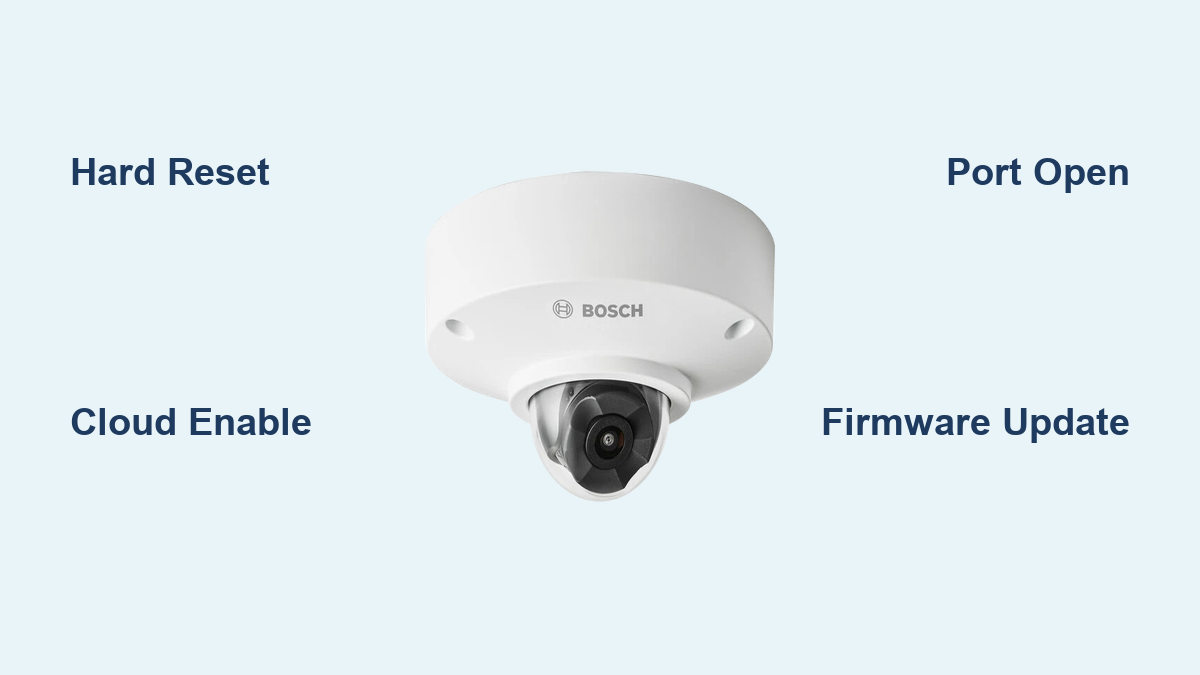

If your Bosch security camera won’t connect to the cloud, fails to power on, or won’t respond to commands, you’re not alone. Many users encounter issues with Bosch security camera troubleshooting, especially around connectivity, resets, and remote access. Whether you’re using a Flexidome, AutoDome, or another Bosch IP model, this guide delivers step-by-step solutions to the most common problems. You’ll learn how to force a reset, fix cloud registration errors, bypass password locks, and ensure your network allows proper communication with Bosch’s Security Cloud.
Perform a Hard Reset on Your Bosch Camera
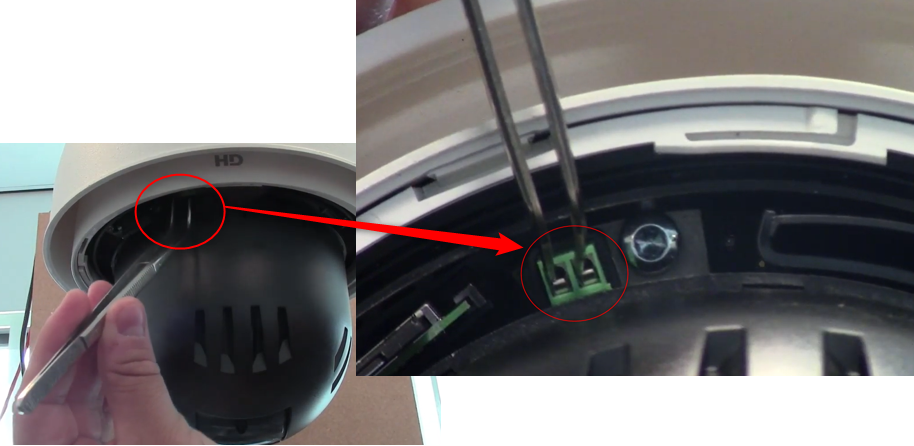
Resetting your Bosch camera restores factory settings and resolves many persistent issues like failed connections or unresponsiveness. This should be your first troubleshooting step when other methods fail.
Reset Flexidome IP Cameras
Use this method for Bosch Flexidome series when the camera won’t connect to Wi-Fi or the app.
- Power on the camera.
- Remove the protective cover to expose the recessed reset button.
- Press and hold the button until the LED blinks rapidly in red.
- Wait for the light to turn off briefly, then flash red again before turning solid green.
When the LED is green, the reset is complete. After reset, you’ll need to reconnect to Wi-Fi, re-pair with the Bosch app, and reconfigure motion detection, recording, and user access settings.
Reset Older Models Without Physical Buttons
Some Bosch cameras, like the AutoDome Easy II (VEZ-211), lack a standard reset button. Try these alternatives instead.
Alternative Reset Methods
Check for OSD controls. If the camera has up, down, left, right, and set buttons, access the on-screen menu and look for Factory Reset or Load Default Settings. Inspect for a hidden reset button near control pads. If found, press and hold for 10 seconds with power applied and wait for LED feedback.
Recover Admin Password via Bosch Support
When you can’t reset or log in, Bosch offers a secure password recovery service.
Password Recovery Steps
- Be onsite with the camera.
- Note the MAC address found on the label or in network settings.
- Call Bosch Central Technical Support.
- Provide the MAC address and current time to sync with their system.
- Receive a temporary password valid for a few minutes.
- Log in immediately and set a new password.
This service requires verification of ownership or integrator status. No third-party tools can bypass this security measure.
Fix Power and Connectivity Failures

Power issues often mimic software failures. Always rule out power problems first before proceeding with network troubleshooting.
Use Correct Power Supplies
Bosch PTZ and PoE cameras are sensitive to power quality. Using incompatible or low-quality PoE injectors or adapters commonly causes camera failures.
Recommended Power Solutions
Use 24VAC power supply units where supported. For PoE models, use Bosch-branded PoE injectors for guaranteed compatibility. The Microsemi PoE injector serves as a cost-effective alternative. Avoid generic third-party adapters as Bosch cameras often reject them.
Diagnostic Test
Connect a known-good 24VAC PSU. If there’s no video output, the issue may be internal board failure and you should contact Bosch Service.
Restore Cloud and Remote Access
Most Bosch camera issues stem from failed cloud registration. Follow these steps to fix Remote Portal and Security Cloud connectivity.
Enable Cloud Services in Camera Settings
If the camera doesn’t appear in Remote Portal, cloud services may be disabled.
How to Enable Cloud Services
- Open the camera’s web interface by entering the IP address in a browser.
- Go to Configuration, then Connectivity.
- Set Cloud-based Services Operation mode to ON.
- Click Set or Save.
- Power-cycle the camera if needed.
Confirm the fix by checking Service, then System Overview, and verifying the Cloud state shows as connected.
Check Cloud Connection Status
Use the Cloud state field to diagnose connection issues accurately.
| Cloud State | Issue | Solution |
|---|---|---|
| Trying to connect… | Establishing TCP link | Wait and check Internet connection |
| Server not reachable | DNS failure | Verify router gateway and DNS settings |
| Server not responding | Timeout | Check firewall and reboot router |
| Not running | Cloud disabled | Enable in settings |
| Not running (DHCP not active) | No IP assigned | Enable DHCP or assign static IP |
| Device not added to CBS system | 8-hour timeout | Power-cycle camera |
After a reset, press the reset button for 7 seconds until the LED turns red, then wait for green.
Open Required Network Ports
Bosch cameras need specific outbound ports open to reach the cloud.
Essential Outbound Ports
Port 42000 handles Cloud Connector and Video Relay. Port 443 provides HTTPS for web access. Port 80 accesses the Certificate Revocation List. Port 123 handles NTP time sync using UDP.
The CRL must be reachable at least once for authentication to work. Use domain-based allowlisting rather than IP addresses, as these may change.
Required Domains
Allow these domains in your firewall. Use asterisks for wildcards where supported. The domains include all cbs.boschsecurity.com subdomains, dm443.cbs.boschsecurity.com, specific Cloud Connector IPs, and the CRL server address.
Fix Multiple Company Login Conflicts
If you manage multiple organizations in Remote Portal, your camera may not appear due to company assignment issues.
How to Set Default Company
- Log in to Remote Portal as Admin or Technician.
- Click your name and select User Settings.
- Go to My Companies.
- Select the correct company.
- Click the star icon and confirm with Yes.
- Wait up to 12 hours for changes to apply.
The selected company will show a blue border when properly set.
Remove Camera from Previous Cloud Instance
A camera can only be registered to one cloud system at a time.
Check for Conflicts
- Access the camera web interface.
- Go to Configuration, then General, then User Management.
- Look for cloud entries like dm35.cbs.boschsecurity.com with Type set to Cloud and Username as an asterisk.
If found, delete the camera from the other cloud system and re-register it to Remote Portal.
Update Faulty Firmware Versions

Some firmware versions block Remote Portal commissioning entirely.
Known Problematic Versions
Firmware 6.44.x cannot connect to Remote Portal. Firmware 6.60.0065 experiences registration failures. Update to firmware 6.61 or later. If the update fails or the problem persists, replace the camera through Bosch Service.
Correct Date and Time Settings
Incorrect time prevents SSL/TLS authentication from working properly.
How to Fix Time Settings
- Stop recording if it’s active.
- Manually set the correct date and time in camera settings.
- Restart recording.
Enable NTP to sync automatically with a time server and prevent future authentication issues.
Regain Access to Restricted Cameras
After a reset, a technician may briefly see the camera before it goes offline.
Cause and Fix
The camera was restricted in Remote Portal and the technician lacks access rights. Delete the camera from Remote Portal before re-registering, or grant access via an administrator account.
Verify Login Credentials
A simple typo can block cloud registration completely.
Error Resolution
The error message reads Authentication failed. Make sure that password and e-mail address are correct. Double-check the email address and password, watching for caps lock or extra spaces. Try logging into the Bosch portal separately to verify account status. If repeated attempts fail, reset your password via the Bosch account portal.
Diagnose and Configure Properly
Use these tools and checks to prevent future issues and maintain reliable operation.
Access Camera Web Interface
The web interface serves as your control center for deep diagnostics and configuration.
How to Connect
- Find the camera’s IP address via router or scanning tool.
- Open a browser and enter http://camera-ip-address.
- Log in with admin credentials.
Key navigation paths include Configuration for connectivity settings, Service for System Overview with cloud state and diagnostics, and General for User Management to control cloud accounts and permissions.
Run Network Diagnostics
Ensure the camera can reach the internet and Bosch servers reliably.
Diagnostic Steps
- Confirm the camera has a valid IP address from DHCP or static assignment.
- Verify access to a DNS server.
- Confirm a route to the gateway exists.
- From a local PC, ping dm443.cbs.boschsecurity.com and the Cloud Connector IP addresses.
- Check firewall logs for blocked traffic on ports 42000, 443, 80, and 123.
Use Bosch Configuration Manager
For multiple cameras or complex setups, use the official Bosch tool.
Features
This tool enables bulk cloud services configuration, pushes firmware updates across multiple devices, and configures network and security settings centrally. It’s ideal for integrators managing large installations.
When to Contact Bosch Support
Not every issue can be fixed onsite. Know when to escalate to professional support.
Call Bosch Technical Support If
You cannot reset due to a lost admin password. Firmware is 6.44.x or 6.60.0065 and won’t update properly. Cloud state stays Not running despite correct settings. There’s no video output with a known-good power supply, indicating possible board failure. MAC-based password reset is needed. None of the above steps resolve the issue.
Prepare Before Calling
Have this information ready to speed up resolution. Gather the model number, MAC address, firmware version, network setup details including PoE or DHCP configuration, and any error messages observed.
Frequently Asked Questions About Bosch Security Camera Troubleshooting
How do I reset a Bosch Flexidome camera to factory settings?
Power on the camera, remove the protective cover to expose the reset button, press and hold until the LED blinks rapidly in red, then wait for the light to turn off briefly, flash red again, and turn solid green. The camera is reset when the LED is green.
Why won’t my Bosch camera connect to Remote Portal?
This issue stems from several causes. Cloud services might be disabled in Configuration, the firewall might block required ports, the firmware might be 6.44.x or 6.60.0065, or the camera might already be registered to another cloud instance. Check each possibility systematically.
What ports does a Bosch security camera need for cloud connectivity?
The camera needs outbound access to port 42000 for Cloud Connector and Video Relay, port 443 for HTTPS, port 80 for the Certificate Revocation List, and port 123 for NTP time sync. All traffic should be allowed to Bosch cloud domains.
How do I recover a lost Bosch camera admin password?
Call Bosch Central Technical Support with the camera’s MAC address and current time. They’ll generate a temporary password valid for a few minutes. Log in immediately and set a new password. This service requires ownership verification.
Why does my Bosch camera show “Not running” cloud state?
This indicates cloud services are disabled. Enable Cloud-based Services in Configuration, then Connectivity. If DHCP is not active, ensure the camera receives an IP address. Power-cycle the camera after making changes.
Can I use third-party PoE injectors with Bosch cameras?
Bosch cameras are sensitive to power quality. Use Bosch-branded PoE injectors or Microsemi PoE injectors for reliable operation. Generic third-party adapters often cause power-related failures and intermittent behavior.
Key Takeaways for Bosch Security Camera Troubleshooting
Most Bosch security camera issues are fixable with the right approach. Start with a hard reset and power check to rule out basic failures. Verify network settings including DHCP, DNS, and firewall rules allowing ports 42000, 443, 80, and 123. Ensure cloud services are enabled in the camera’s web interface and check the cloud state for specific error messages. Avoid outdated firmware versions 6.44.x and 6.60.0065 by updating to 6.61 or later. Manage user permissions carefully in Remote Portal, setting a default commissioning company if you manage multiple organizations. When in doubt, use the web interface and Bosch Configuration Manager for deeper control and diagnostics. If all else fails, Bosch Support can help with password recovery and hardware faults. With this guide, you’re equipped to handle Bosch security camera troubleshooting like a professional.