
You’re not alone if your Vivint flood light won’t turn off. Whether it stays lit 24/7, flickers endlessly, or ignores your app commands, this issue can drain energy, create light pollution, and even weaken your home security by desensitizing neighbors to motion alerts. The good news is that most causes are fixable without replacing the entire unit. This guide breaks down the top reasons your Vivint flood light stays on and walks you through exact fixes, from adjusting app settings to performing hardware resets.
Check “Always On” Mode in the Vivint App
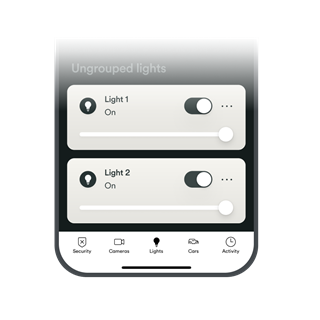
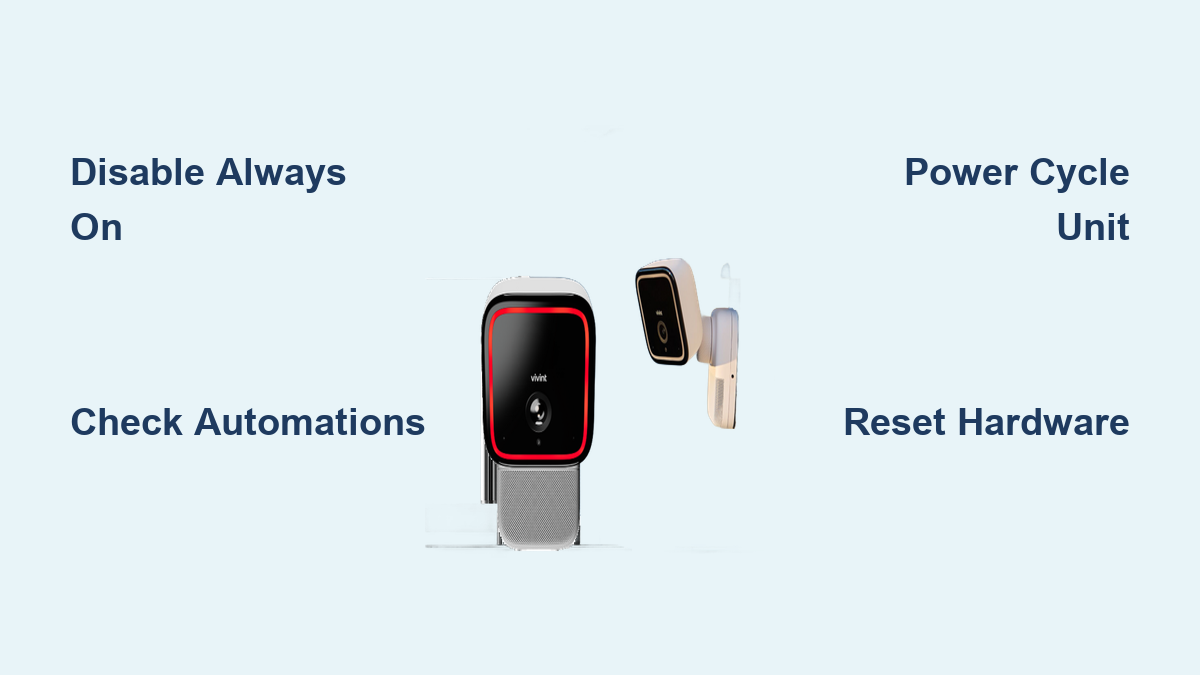
The most common reason a Vivint flood light won’t turn off is the “Always On” mode being accidentally enabled. This feature overrides motion detection and schedules, forcing the light to stay active indefinitely.
Turn Off the Always On Setting
Open the Vivint Smart Home app, tap your outdoor camera or floodlight device, and look for the lightbulb icon. If it’s solid or highlighted, the light is set to “Always On.” Tap the icon once to disable it. The light should switch off within seconds if no motion is detected.
Pro Tip: If the app doesn’t respond right away, force-close it, reconnect to Wi-Fi, and try again. A poor connection can delay command delivery.
Confirm Device Status Has Synced
Sometimes the app shows the light as “off” when it is still physically on. Refresh the device status by pulling down on the device screen. If the live feed shows the light glowing, the system hasn’t synced yet. Wait up to 30 seconds or restart the app entirely.
Review Automation Rules and Schedules
Automations like routines, geofencing, or smart triggers can force the flood light to stay active even when “Always On” is disabled.
Audit Existing Rules in the App
Go to the Automation tab inside the Vivint app. Look for any routines involving outdoor lighting, security scenes, or motion responses. Common examples include:
- “Turn on lights when I arrive home”
- “Security mode activates flood lights”
- “Sunset to sunrise” schedules
Tap each rule and check whether the flood light appears as an action. Disable or edit any automation that might be keeping the light active.
Common Mistake: Users often forget they set a temporary “test” routine and never deleted it.
Test with All Automations Disabled
Temporarily turn off every automation in your system. Wait 2 to 3 minutes. If the light finally shuts off, re-enable your rules one at a time to isolate which one is the culprit.
Reset the Flood Light Hardware
If app settings don’t solve the problem, a hardware reset can clear stuck commands or firmware glitches that keep your Vivint flood light from turning off.
Power Cycle the Unit
- Go to your home’s electrical panel.
- Locate the breaker that powers the flood light.
- Switch it off for 30 seconds.
- Turn it back on.
This forces the device to reboot and re-establish communication with the Vivint system. Wait up to 2 minutes for the light to cycle and settle into normal operation.
Visual Cue: After power returns, the light may flash once or twice. This is normal startup behavior.
Perform a Factory Reset if Needed
If power cycling fails, perform a factory reset. Note: This erases your custom settings.
- Power the unit off at the breaker.
- Turn the breaker back on.
- Within 10 seconds, press and hold the physical button on the device (if equipped) for 15 to 20 seconds.
- Release when the light flashes rapidly or changes color.
The device will restart and enter setup mode. Reconnect it through the Vivint app and reconfigure your settings from scratch.
Inspect Motion and Light Sensors
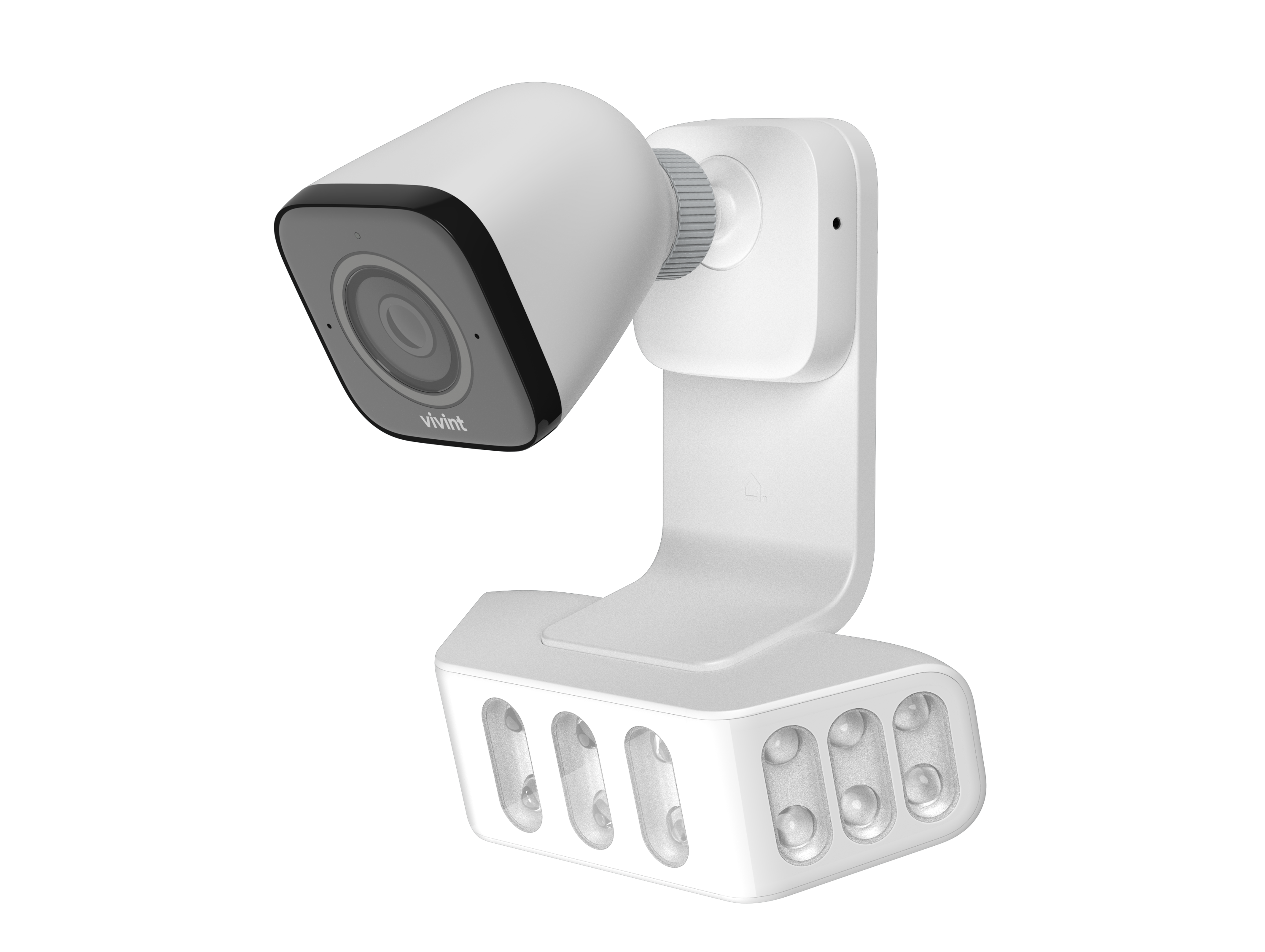
Faulty or overly sensitive sensors can cause the flood light to stay on, especially if the system believes it is always dark or constantly detecting movement.
Adjust Motion Sensitivity
In the Vivint app:
- Tap your device.
- Go to Settings > Motion Detection.
- Lower the sensitivity slider.
- Save your changes.
Test by walking through the detection zone. The light should activate briefly and then shut off, not stay illuminated.
Clean the Ambient Light Sensor
The flood light has a built-in dusk-to-dawn sensor that keeps it off during daylight. Dirt, spider webs, or paint can block this sensor, tricking the system into thinking it is always night.
- Power off the unit.
- Wipe the sensor (usually near the lens or base) with a soft, dry cloth.
- Remove any debris around the housing.
Check for Firmware Updates
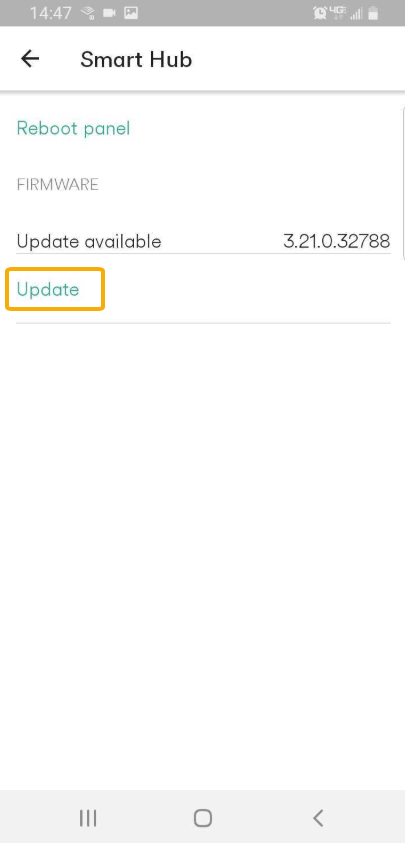
Outdated firmware can cause logic errors, such as lights staying on long after motion has stopped.
Update Through the App
- Open the Vivint app.
- Tap Menu > Devices.
- Select your flood light or outdoor camera.
- Tap Device Info or Settings.
- Look for Firmware Update.
If an update is available, install it. The device will reboot automatically. Allow 5 to 10 minutes for the process to complete.
Pro Tip: Keep your Vivint system online and powered during updates. Interruptions can corrupt firmware.
Rule Out Smart Home Integration Conflicts
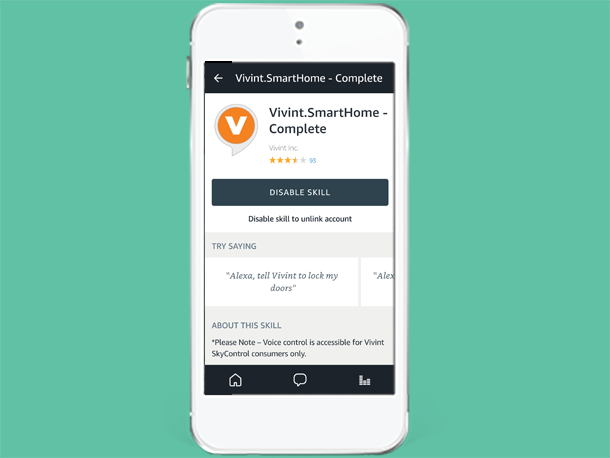
If you use Vivint with Google Assistant, Amazon Alexa, or Apple HomeKit, third-party commands might be overriding your in-app settings and keeping the light on.
Disable Integrations Temporarily
- In the Vivint app, go to Services or Integrations.
- Disable linked platforms like Alexa or Google Home.
- Wait 2 minutes.
- Check if the light turns off.
If it does, re-enable integrations one by one to find the source. Also, check your voice assistant apps for routines like “Turn on all lights at sunset” that may be triggering the flood light.
Contact Vivint Support
If none of the above steps resolve the issue, the problem may be hardware-related, such as a faulty relay, damaged circuit board, or wiring issue.
When to Call Support
Seek professional help if:
- The light stays on after a factory reset.
- No app commands register at all.
- The unit overheats or makes a buzzing sound.
- Flickering persists even in daylight.
What Vivint Support Can Do
Vivint technicians can:
- Remotely diagnose system logs.
- Push forced firmware updates.
- Dispatch a technician for in-person repair.
- Replace the unit if it is still under warranty.
Warranty Note: Most Vivint outdoor lights are covered for 1 year. Check your plan details inside the app for specifics.
Frequently Asked Questions About Vivint Flood Lights
Why does my Vivint flood light stay on all night?
The most likely cause is the “Always On” mode being enabled in the Vivint app. Open the app, tap your device, and toggle off the lightbulb icon. Also check your automation rules, as scheduled routines can keep the light active.
How do I reset my Vivint outdoor flood light?
Power cycle the unit by switching its breaker off for 30 seconds, then back on. If that fails, perform a factory reset by holding the physical button on the device for 15 to 20 seconds within 10 seconds of restoring power.
Can Alexa or Google Home keep my Vivint flood light on?
Yes. Third-party routines like “Turn on all lights at sunset” can override your Vivint settings. Disable integrations temporarily in the Vivint app to test whether they are the cause.
Will a firmware update fix a flood light stuck on?
Often, yes. Firmware bugs can cause logic errors that prevent the light from shutting off. Update through the Vivint app under Device Info or Settings to install the latest version.
How long is the Vivint flood light warranty?
Most Vivint outdoor lights come with a 1-year warranty. Confirm your coverage in the app or by contacting Vivint support directly.
Key Takeaways for Fixing a Vivint Flood Light That Won’t Turn Off
A Vivint flood light that won’t turn off is usually a settings issue rather than a hardware failure. Start by disabling “Always On” mode in the app and reviewing your automations. If that doesn’t work, power cycle the unit or perform a factory reset. Cleaning the ambient light sensor and updating firmware can also prevent the issue from coming back.
With these steps, most users restore normal operation in under 15 minutes. If the problem persists after a factory reset, contact Vivint support for remote diagnostics or a potential warranty replacement.