
You flip the switch or rely on motion detection, but your flood light stays on—night after night. A flood light that won’t turn off isn’t just annoying; it wastes energy, shortens the bulb’s life, and can disturb neighbors. Whether it’s a basic motion-sensor unit or a smart floodlight camera like a Ring, this issue is common and usually fixable.
The root cause often lies in settings, environmental triggers, or hardware failure. You don’t need to replace the fixture right away. In fact, most cases can be resolved with simple resets or adjustments. This guide walks you through proven troubleshooting steps, from quick fixes to permanent solutions, so you can restore control and get your light working as intended.
Reset the Power Cycle
A sudden power surge or glitch can lock your flood light in the “on” state. The fastest fix is a full power reset.
Cut Power for 60 Seconds
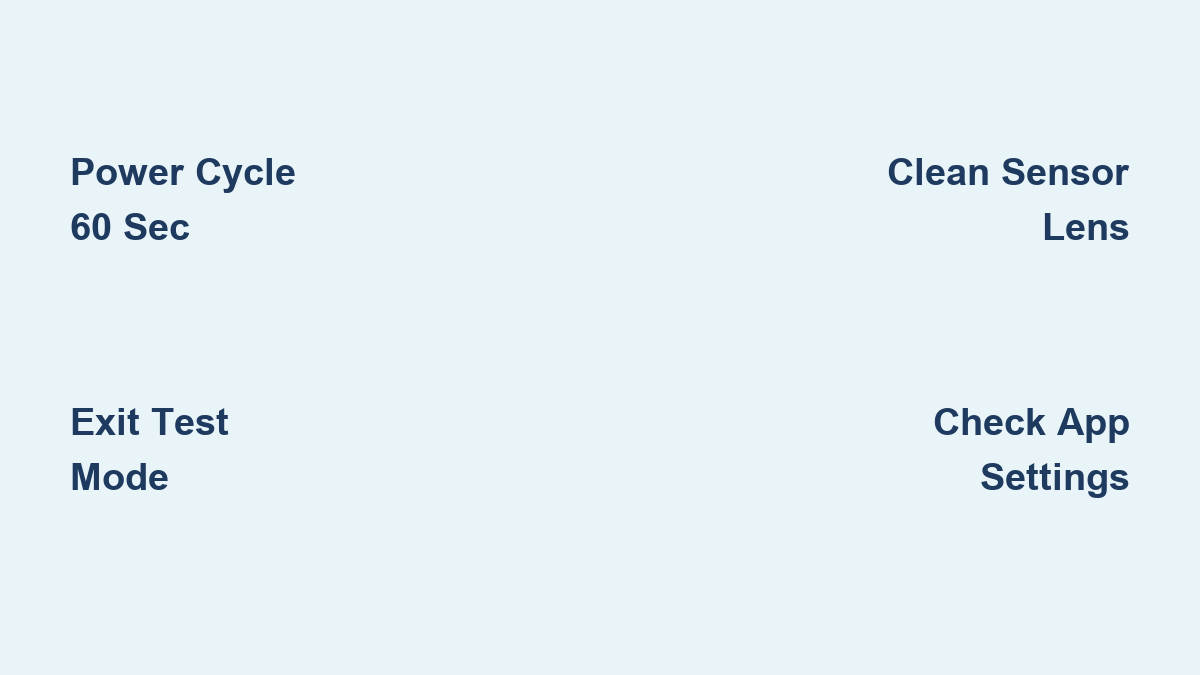
Turn off the circuit breaker supplying the light. Wait at least 60 seconds, not just 5, to ensure the internal capacitor fully discharges. This clears any stuck logic in the control board. Restore power and observe. Many units return to normal operation after this step alone, especially if the issue followed a storm or outage.
Use the Wall Switch Correctly
If your light is on a wall switch instead of a breaker, turn it off and wait 5 to 10 minutes before turning it back on. A short toggle may not reset the internal processor. This extended off period forces the unit to reboot into default “Auto” mode, often overriding accidental manual or test settings.
Check for Manual or Test Mode
Many flood lights have hidden modes activated by switch toggling. If the light won’t turn off, it may be stuck in manual override.
Exit Floodlight Mode
Rapidly flipping the switch (off-on-off-on) can trigger “Floodlight Mode,” forcing continuous operation. To exit:
- Turn the switch off.
- Wait 5 full minutes.
- Turn the switch back on.
This forces a reset to motion-sensor mode. Avoid quick toggling during future power cycles.
Confirm Test Mode Is Off
Some models enter “Test Mode” during installation, keeping lights on indefinitely. If settings were recently adjusted or power was restored, the unit may still be in test mode. A full power cycle (60+ seconds off) typically disables it. If your model has a reset button, press and hold it for 10 seconds after power restoration.
Adjust Sensitivity and Timer Settings

Incorrect settings can make a flood light appear stuck on, even when it’s technically working.
Lower Motion Sensitivity
High sensitivity picks up false triggers: insects, wind-blown leaves, or distant car headlights. Each trigger resets the timer, keeping the light on all night. Locate the sensitivity dial (usually on the fixture) and turn it to Low or Minimum. Test for 24 hours. If the light now turns off, gradually increase sensitivity until reliable detection returns without false alarms.
Shorten the On-Time Duration
If the timer is set to 10 minutes, and motion is detected every 9 minutes, the light never shuts off. Set the duration dial to 30 seconds. This reveals whether the system is responding. If the light turns off after 30 seconds and only relights with motion, the sensor is functional, just overwhelmed. Reset to a moderate duration (2–3 minutes) once false triggers are ruled out.
Clean the Sensor and Lens
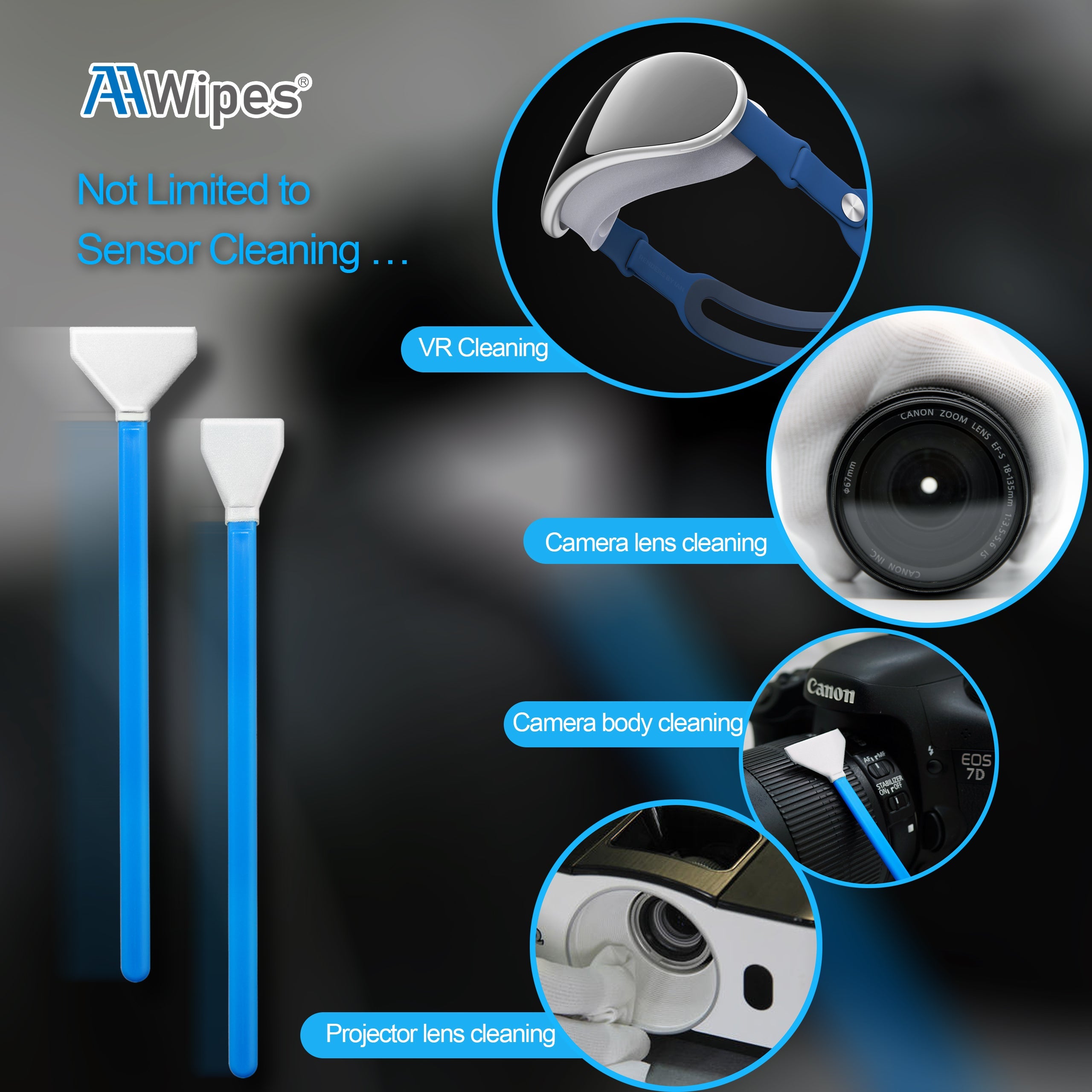
Dirt, cobwebs, or moisture on the PIR lens can scatter infrared signals, causing constant false detection.
Wipe the Sensor Dome
Turn off power. Use a soft, lint-free cloth dampened with mild soapy water. Gently wipe the entire sensor lens. Avoid abrasives or harsh chemicals that can scratch the surface. Let it dry completely before restoring power. A clean lens can resolve flickering or stuck-on behavior caused by insect nests or dust buildup.
Inspect for Spider Webs
Spiders often build webs directly over PIR sensors. These move with air currents, mimicking motion. Shine a flashlight into the lens area. If you see webs, remove them with a cotton swab or compressed air. Consider applying a small amount of spider repellent around the housing (not on the lens) to prevent recurrence.
Reposition and Shield the Sensor
:max_bytes(150000):strip_icc()/spr-smart-lighting-test-ring-floodlight-cam-wired-jennifer-may-25_crop-9ad33ec5a5d941c4a5cf5cca71e82a5d.jpeg)
Even with correct settings, environmental factors can keep your light on.
Aim Away from Traffic and Trees
Reposition the sensor head (if adjustable) so it doesn’t face streets, sidewalks, or swaying branches. Focus coverage on entry points like doors or driveways. Small adjustments can eliminate false triggers from passing cars or wind-blown vegetation.
Narrow the Detection Zone
Some models allow partial blocking of the sensor lens with tape or shields. Cover the lower or outer edges to reduce range and sensitivity to distant movement. This is especially useful if pets or wildlife trigger the light. Test incrementally, since over-blocking can reduce security coverage.
Verify Smart App Settings
For Ring, Nest, or other smart floodlight cameras, software settings often override physical controls.
Disable Light Schedules
Open the manufacturer’s app. Go to device settings. Check if a Light Schedule is active. These schedules can force lights on during specific hours, ignoring motion settings. Turn off any scheduled on-times. Confirm the light operates only in “Motion-Activated” mode.
Reboot via App
Use the Device Care or Reboot function in the app. This restarts the internal processor without cutting power. After reboot, monitor the light. If it turns back on immediately, check for firmware bugs.
Check for Firmware Bugs
Recent updates have caused looping issues in some smart floodlights. Search the manufacturer’s support page or user forums for known bugs. If confirmed, a factory reset may be required. For Ring devices, perform a soft reset in the app before attempting a full reset.
Inspect Wiring and Electrical Supply
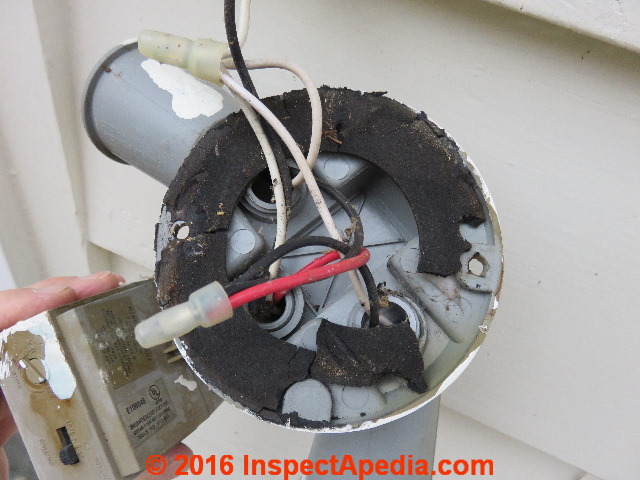
Faulty wiring can bypass sensor logic, sending continuous power to the light.
Look for Loose or Corroded Wires
Turn off power at the breaker. Remove the fixture cover. Check wire nuts for loose connections. Look for corrosion or moisture in the junction box. Tighten all connections and replace any damaged wires. Ensure ground and neutral wires are properly secured.
Test for Voltage Fluctuations
Use a multimeter to check incoming voltage. Consistent fluctuations can prevent the control board from sending the “off” signal. If voltage is unstable, consult an electrician. Consider installing a surge protector on the circuit.
Replace Failed Hardware
If all else fails, the PIR sensor or control board has likely failed.
Diagnose Sensor Failure
If the light turns off during daylight but stays on at night, the dusk-to-dawn sensor works, but the PIR sensor is stuck “on.” This is a classic sign of internal failure. Cleaning and resetting won’t help.
Upgrade to a New Fixture
Modern LED flood lights are affordable and energy-efficient. Given the labor involved in repairing internal components, experts recommend full replacement. Choose a model with:
- IP65 or higher weather resistance
- Adjustable motion zones
- Built-in surge protection
Install in a sheltered location to extend lifespan.
Frequently Asked Questions About Flood Lights That Won’t Turn Off
Why does my flood light stay on even during the day?
This usually points to a malfunctioning photocell (daylight sensor) or a logic error where the dusk-to-dawn function has been disabled. It can also occur if the unit is stuck in manual override mode. Try a full power cycle and check for active schedules in the app if it’s a smart device.
How do I know if my motion sensor is bad?
The most common sign is a light that turns off during the day but stays on at night. This means the dusk-to-dawn sensor works, but the PIR sensor is sending a constant “motion detected” signal. Cleaning and resetting typically won’t fix a failed sensor; replacement is the usual solution.
Can a power surge cause a flood light to stay on?
Yes. Power surges, outages, and grid fluctuations can freeze the internal logic board, locking the relay in the “on” position. A hard reset by cutting power at the breaker for at least 60 seconds clears this glitch in most cases.
Why does my Ring floodlight turn back on immediately after I turn it off?
This is a known issue often linked to firmware bugs or active Light Schedules in the Ring app. Start by rebooting via the app’s Device Care menu, disabling any schedules, and then performing a breaker power cycle. If the issue started after an update, check Ring’s support page for known bugs.
How long should I wait before turning the breaker back on?
Wait at least 60 seconds to ensure the internal capacitor fully discharges and the logic board resets. For wall switches, wait 5 to 10 minutes to force the unit out of any manual or test mode it may have entered.
Is it worth repairing an old flood light or should I replace it?
Experts generally recommend replacement. PIR sensors are low-cost components prone to moisture damage, and labor costs often exceed the price of a new LED fixture. A modern replacement also offers better weatherproofing and energy efficiency.
Key Takeaways for Fixing a Flood Light That Won’t Turn Off

Start with the simplest fix: a 60-second power cycle at the breaker. This resolves most glitches caused by power surges or frozen logic boards. If that doesn’t work, check for accidental manual or test modes by leaving the switch off for 5+ minutes.
Next, adjust sensitivity and timer settings to rule out false triggers. Clean the sensor lens to remove dust, webs, or moisture that scatter infrared signals. For smart devices, always check app schedules and firmware status before assuming hardware failure.
If the light still won’t turn off, inspect the wiring for loose connections or corrosion. Persistent issues after all these steps usually mean the PIR sensor has failed and the fixture needs replacement. Choose a weather-rated LED model with surge protection for long-term reliability.
Safety reminder: If you notice sparks, burning smells, or visible scorching at any point, stop troubleshooting immediately and contact a licensed electrician.