
Is your Feit smart flood light camera refusing to connect to Wi-Fi or stuck after a power outage? You’re not alone. Many users run into pairing failures, unresponsive controls, or post-update glitches that a simple reset can solve. Knowing how to reset Feit flood light security camera devices saves you time, frustration, and unnecessary returns.
In this guide, you’ll learn exactly how to locate the reset button, trigger pairing mode, force a reboot when the button method fails, and reconnect your camera to the Feit Home app without headaches.
Locate the Reset Button on Your Flood Light Camera

Find the Recessed Reset Pinhole
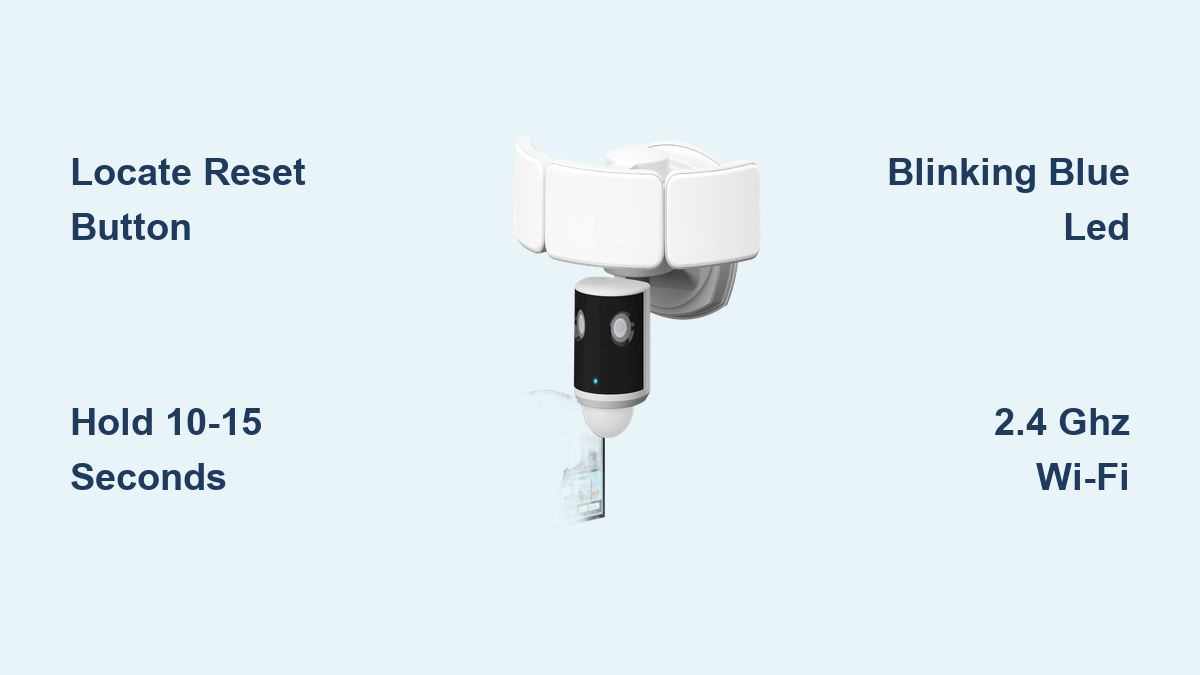
The reset button sits behind a removable cover on the side of the flood light fixture. Before opening anything, turn off the breaker supplying power to the unit. Use your fingers or a small flat tool to gently pry the side panel loose. Inside, look for a tiny pinhole labeled “Reset” near the wiring area.
Gather What You’ll Need
You only need two things:
- A paperclip or SIM eject tool
- Access to the LED indicator on the front of the camera
Keep the breaker on during the actual reset. The button only responds when the unit has power.
Press and Hold to Enter Pairing Mode

Perform the Standard Reset
With power flowing to the fixture, insert your paperclip into the reset hole. Press and hold the button for 10 to 15 seconds. Don’t let go early, or the command won’t register. Watch the front of the camera for a rapidly blinking blue LED and listen for a short audible tone. Together, these signals confirm the camera has restarted and entered pairing mode.
Confirm the Reset Worked
Once you see the blue blink and hear the tone, release the button. The camera is now broadcasting a temporary Wi-Fi signal and waiting for the Feit Home app to find it. If nothing happens, repeat the press with slightly firmer, more direct pressure. The button is stiff by design to prevent accidental resets.
Force a Reboot by Cutting Power
Use the Breaker as a Backup Reset
When the reset button doesn’t trigger a response, cut power at the breaker. Leave the power off for at least 5 seconds to fully drain the internal capacitor. Flip the breaker back on and watch the camera boot up.
Watch for the Correct LED Pattern
A healthy reboot shows a brief solid white or amber light, then transitions into a blinking blue light. The blue blink means the camera self-reset into pairing mode. If the light stays solid or never turns on, immediately try the reset button method while the unit is freshly powered.
Troubleshoot a Reset That Won’t Trigger
No Blinking Light or Tone?
Run through these checks:
- Power supply issue: Test the breaker to confirm electricity is reaching the fixture.
- Weak button press: The pinhole button needs firm, straight pressure to make contact.
- Faulty LED: In rare cases, the indicator light stops working but the tone still plays.
If you hear the tone even without a visible blink, the reset succeeded. Move on to pairing.
Camera Refuses Pairing Mode
When the device stays offline after resetting:
- Make sure no other phone is already connected through the Feit Home app.
- Move within 10 feet of your Wi-Fi router during setup.
- Forget the device in the app, then restart the pairing wizard.
- Update the Feit Home app to the latest version before retrying.
Reconnect Through the Feit Home App
Pair the Camera Step by Step
Open the Feit Home app and tap the “+” icon to add a device. Choose “Smart Flood Light Camera” from the list. The app walks you through connecting your phone to the camera’s temporary hotspot, usually named something like “FeitCam-XXXX.” Enter your home Wi-Fi credentials when prompted and wait for the camera to finish rebooting.
Avoid These Common Setup Mistakes
Most reconnection failures come from simple oversights:
- Using a 5 GHz network (the camera only supports 2.4 GHz)
- Typing the wrong Wi-Fi password
- Leaving mobile data enabled during pairing
Stick to a private 2.4 GHz network and turn off cellular data before starting.
Keep Your Camera Running Smoothly After Reset
Update Firmware Right Away
After pairing, check the device settings in the Feit Home app for firmware updates. Updated firmware patches bugs, improves stability, and strengthens security. Enable auto-updates if the option exists.
Power Cycle Every Few Months
Smart devices benefit from occasional reboots. Flip the breaker off for 10 seconds every two to three months. This clears minor memory glitches and keeps the system responsive.
Guard Against Power Surges
Outdoor circuits take a beating from lightning and grid fluctuations. Install a surge protector on the line feeding your flood light. Surge damage can silently break the reset function and ruin the internal board.
Frequently Asked Questions About Resetting Feit Flood Light Cameras
How long do I hold the reset button on a Feit flood light camera?
Hold the reset button for 10 to 15 seconds until the LED blinks blue and the camera plays a tone. Releasing too early prevents the reset from registering.
Where is the reset button on a Feit smart flood light?
The reset button is a small recessed pinhole behind the removable side cover of the flood light fixture. You need a paperclip or SIM tool to press it.
What if the reset button doesn’t work on my Feit camera?
Cut power at the breaker for at least 5 seconds, then restore it. This forces a hard reboot and often triggers pairing mode when the button method fails.
Why won’t my Feit flood light camera connect to Wi-Fi after reset?
The camera only supports 2.4 GHz networks. Make sure your phone is on the same 2.4 GHz band, mobile data is off, and you’re entering the correct Wi-Fi password.
Do I need to delete the camera from the app before resetting?
It’s not required, but forgetting the device in the Feit Home app before resetting prevents pairing conflicts and speeds up reconnection.
Can a power surge permanently damage my Feit flood light camera?
Yes. Strong surges can fry the internal board and make resets ineffective. A surge protector on the outdoor circuit prevents this type of failure.
Key Takeaways for Resetting Your Feit Flood Light Camera

Resetting your Feit flood light security camera comes down to three reliable steps: locate the recessed reset button behind the side cover, press and hold it for 10 to 15 seconds until you see a blinking blue LED and hear a tone, then reconnect through the Feit Home app on a 2.4 GHz network. If the button method fails, a 5-second breaker cycle usually forces the reset you need.
Next step: Open the Feit Home app right now, forget the camera if it’s still listed, and run through the pairing wizard while standing close to your router. You’ll have a fully functional security camera within minutes.