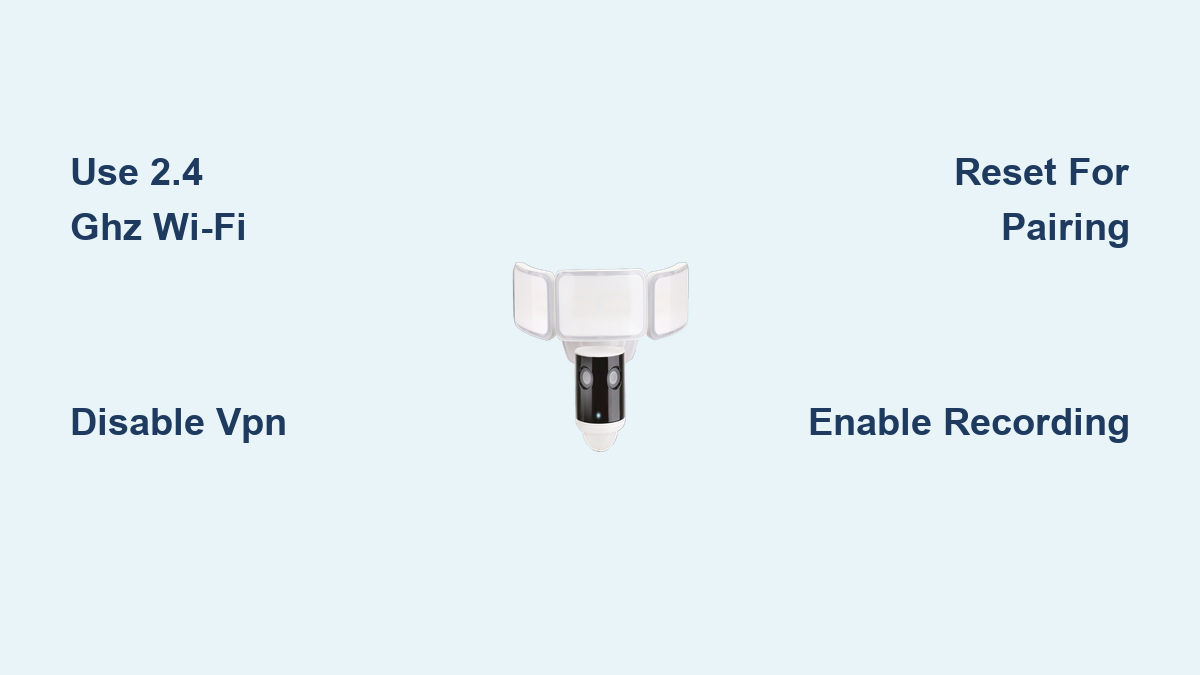

If your Feit flood light security camera won’t connect to Wi-Fi, you’re not alone. The most common reason? Trying to pair with a 5 GHz network instead of the required 2.4 GHz. Feit’s smart flood lights only work on 2.4 GHz, and missing this critical detail can stall setup before it begins. Add in background VPNs, outdated phones, or glare during QR code scanning, and frustration builds fast.
But with the right steps, you can get your camera online in minutes. This guide walks you through the exact process, whether using QR code pairing or EZ Mode, plus troubleshooting tips that actually work. You’ll learn how to verify your network, reset the device, and avoid the top mistakes users make. By the end, you’ll have a fully connected camera with live streaming, motion alerts, and recording ready to go.
Confirm Setup Requirements Before Connecting Feit Flood Light Camera
Before opening the app, verify your setup meets Feit’s strict technical limits. Skipping this step causes most failed connections.
Check Device and App Compatibility
Your smartphone must run iOS 11.0 or higher or Android 6.0 or higher. Older operating systems lack the Bluetooth and Wi-Fi protocols needed for pairing. If your phone is several years old, check for system updates under your settings menu. Then download the Feit Electric App from the App Store or Google Play. Do not use third-party apps. Only the official Feit app supports camera setup.
Verify 2.4 GHz Wi-Fi Network
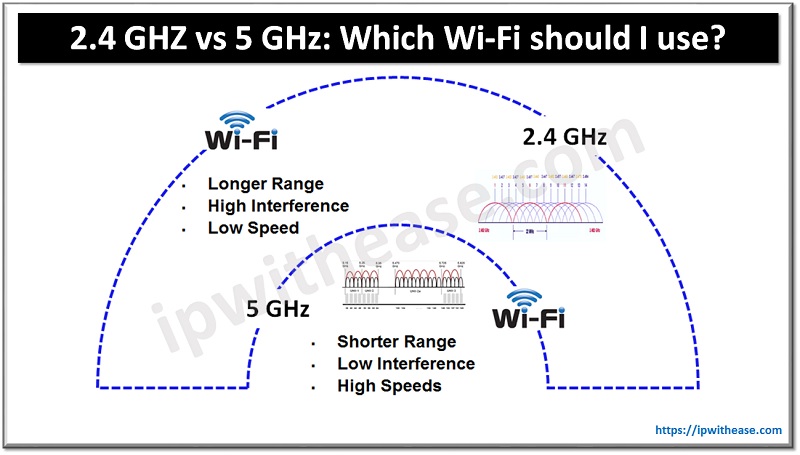
The Feit flood light camera only connects to 2.4 GHz networks. It cannot detect or join 5 GHz bands. If your router broadcasts a single network name for both bands, your phone may auto-connect to 5 GHz, blocking camera setup. To confirm your phone is on 2.4 GHz:
- Go to your phone’s Wi-Fi settings
- Tap the network name
- Look for “2.4G” or “2.4 GHz” in the details
If not visible, log into your router settings (usually via 192.168.1.1 in a browser) and disable band steering or split the bands into separate networks. Alternatively, set up a 2.4 GHz guest network, a proven workaround for mesh systems like Google Nest or Eero.
Disable VPN and Enable Location
Turn off any active VPN apps. They reroute traffic and block local device discovery. On Android, you may also need to enable Location Services, as some versions require it for Bluetooth scanning during setup. Ensure your phone is connected to the correct 2.4 GHz network before proceeding.
Use QR Code to Pair Feit Flood Light Camera
QR code pairing is Feit’s recommended method. It uses visual data transfer to sync Wi-Fi credentials quickly.
Start Device Setup in App
Open the Feit Electric App and tap the + icon in the top right. Select Security & Cameras, then make sure QR Code is selected as the installation method. Choose your flood light model when prompted.
Prepare Camera for Pairing
Ensure the flood light is hardwired and powered on. No setup works without power. Look at the camera’s indicator light. It should be flashing. If it’s solid or off, press and hold the reset button for 5 seconds until you hear a beep. The light will start flashing, signaling pairing mode.
Scan QR Code Correctly
Hold your phone 6 to 12 inches from the camera lens, with the QR code centered in the camera’s view. Avoid direct sunlight. Glare on the screen or lens can block scanning. If the first attempt fails, wait 10 seconds and try again. The camera may need 2 to 3 tries. When successful, you’ll hear a beep from the device. Tap “I heard the beep” in the app. Wait for the “Device Connected” confirmation.
Try EZ Mode If QR Code Fails
If QR code scanning fails due to lighting or distance, switch to EZ Mode for manual setup.
Switch to EZ Mode in App
From the add device screen, tap the top right corner to change the method from QR Code to EZ Mode. Follow the same initial steps: power on the camera, ensure the light is flashing, and tap Confirm.
Enter Wi-Fi Credentials Manually
The app will prompt you to enter your 2.4 GHz Wi-Fi password. Double-check for accuracy. Case sensitivity matters. Make sure your phone is still connected to the 2.4 GHz network. Tap Connect and wait. The camera will process the data. Success is confirmed when the indicator light turns solid blue.
Complete Device Naming and Setup
Once connected, rename your camera by tapping the pen icon. Choose a descriptive name like “Backyard Light Cam.” Tap Save, then Done. Press and hold the camera icon in the app to access the control panel.
Enable Video Recording After Wi-Fi Setup

Connecting to Wi-Fi doesn’t automatically turn on recording. You must manually enable it.
Activate SD Card Recording
Tap the camera in the app, go to Settings, then SD Card Record Settings. Toggle the Record Switch to ON. If no SD card is inserted, the app will prompt you to add one. Use a microSD card rated Class 10 or higher (up to 128GB) for reliable performance. Without this step, motion clips and live recordings won’t save.
Fix Common Connection Issues
Even with correct steps, problems arise. Use this targeted troubleshooting to resolve them fast.
No Blinking Light? Reset the Camera
If the indicator light isn’t flashing, the camera isn’t in pairing mode. Locate the reset button on the side or bottom of the device. Press and hold for 5 seconds until you hear a beep. The light should start flashing. If not, check power at the circuit breaker and wiring connections.
Wi-Fi Won’t Connect? Check Network Conflicts
If EZ Mode fails:
- Re-enter the Wi-Fi password carefully
- Confirm your phone is on 2.4 GHz
- Restart your router
- Try a guest network limited to 2.4 GHz
Avoid networks with special characters in the password. Some Feit models struggle with symbols like “&” or “#”.
App Can’t Detect Camera? Disable Interfering Apps
Close all background apps, especially VPNs, ad blockers, or firewall tools. These can block Bluetooth or local network access. Restart your phone if needed. Ensure Bluetooth is enabled. Feit uses it briefly during setup even though the camera connects via Wi-Fi.
Understand Status Lights and Sounds
Visual and audio cues tell you exactly what’s happening during setup.
Flashing Light Means Ready to Pair
A flashing indicator means the camera is in setup mode. This occurs after a reset or initial power-up. If it stops flashing, the device timed out. Press reset again.
Beep Means Data Received
Hearing a beep during QR scan means the camera read the code. Tap “I heard the beep” immediately. A beep during reset confirms factory reset started.
Solid Blue Means Connected and Live
Once the light turns solid blue, the camera is online. You can now view live footage, receive motion alerts, and use two-way audio.
No Light Means Power Problem
If there’s no light at all, the fixture isn’t getting power. Check the breaker, switch, and wiring. Use a voltage tester to confirm power at the fixture.
Prevent Future Wi-Fi Dropouts
Even after success, cameras can disconnect. Avoid downtime with these tips.
Keep Router and Camera Close
Feit flood lights need strong signal strength. If your router is far away or blocked by walls, consider a Wi-Fi extender or mesh node near the camera. Aim for a signal strength above -70 dBm.
Use a Dedicated Guest Network
Assign the camera to a 2.4 GHz guest network. This isolates it from heavy traffic on your main network and reduces interference from streaming or gaming devices.
Update Firmware Regularly
Open the Feit app periodically to check for firmware updates. These often improve Wi-Fi stability and security. Updates install automatically when the camera is online.
Avoid Network Overload
Too many smart devices on one network can cause congestion. Limit connected gadgets or upgrade to a router that handles 50+ devices. Set quality-of-service (QoS) rules to prioritize camera traffic.
Frequently Asked Questions About Connecting Feit Flood Light Camera to Wi-Fi
Why won’t my Feit flood light camera connect to Wi-Fi?
The most common cause is using a 5 GHz network. Feit cameras only support 2.4 GHz. Other causes include active VPNs, incorrect passwords, or the camera not being in pairing mode. Reset the device and confirm your phone is on a 2.4 GHz network before retrying.
Does the Feit flood light camera work with 5 GHz Wi-Fi?
No. The Feit flood light security camera only works on 2.4 GHz networks. If your router combines both bands under one name, split them or create a 2.4 GHz guest network for the camera.
How do I reset my Feit flood light camera?
Locate the reset button on the camera. Press and hold it for 5 seconds until you hear a beep. The indicator light should start flashing, indicating the device is ready for pairing.
Do I need an SD card for the Feit flood light camera?
An SD card is required for video recording and playback. The camera supports microSD cards up to 128GB, rated Class 10 or higher. You must also manually enable the Record Switch in the app’s SD Card Record Settings.
Can I connect my Feit camera without scanning a QR code?
Yes. Use EZ Mode instead. Select EZ Mode in the app during setup, then manually enter your 2.4 GHz Wi-Fi password. The camera will connect when the indicator light turns solid blue.
What does a solid blue light on my Feit camera mean?
A solid blue light indicates the camera is successfully connected to Wi-Fi and the Feit cloud. The device is fully operational and ready for live streaming and alerts.
Key Takeaways for Connecting Your Feit Flood Light Camera to Wi-Fi
Connecting your Feit flood light security camera to Wi-Fi hinges on five key factors: using 2.4 GHz only, disabling VPNs, ensuring proper power, scanning the QR code correctly, and enabling recording manually. Follow the EZ Mode steps if QR fails, and always verify status via the indicator light.
With the camera online, you gain live streaming, motion alerts, two-way audio, and 911 emergency calling right from your phone. For lasting performance, keep the device on a stable 2.4 GHz network and check for app updates monthly. Start by confirming your network frequency today, and you’ll have your camera streaming in under ten minutes.