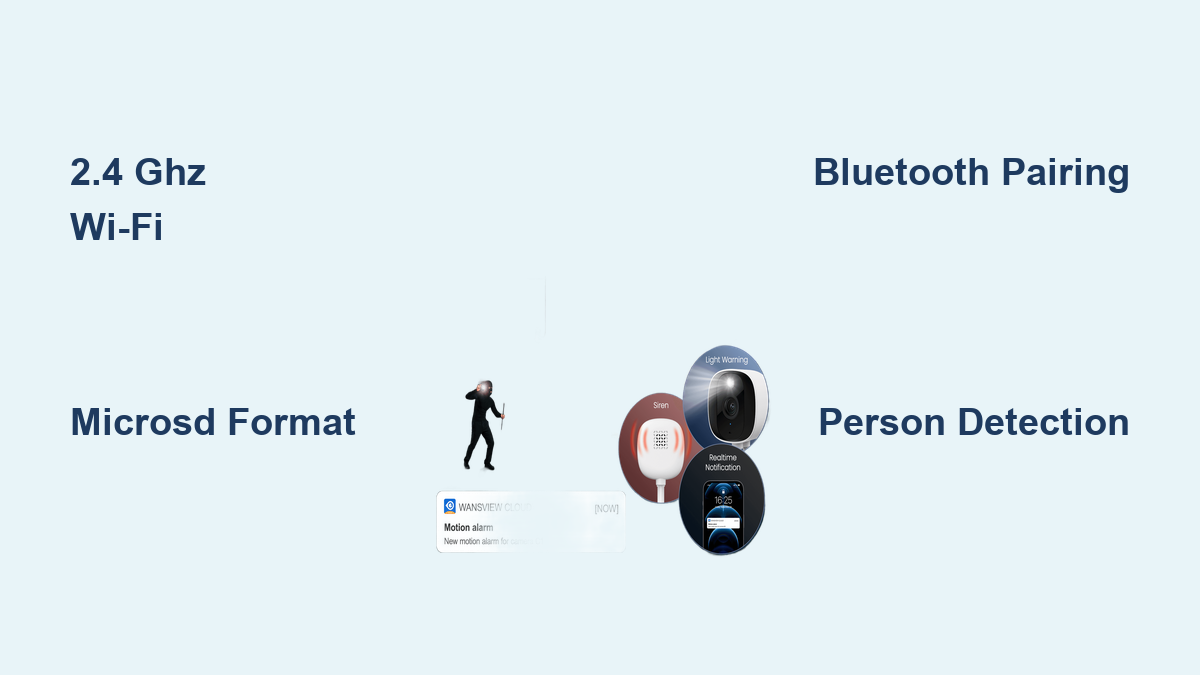

Setting up your AOQEE security camera should be simple, not stressful. Whether you’re installing the AOQEE C1 for the first time or troubleshooting a connection issue, this guide walks you through every step with clarity and precision. Designed for both beginners and tech-savvy users, we focus on getting your 2K WiFi camera online quickly using Bluetooth pairing, proper microSD setup, and correct 2.4 GHz Wi-Fi configuration.
You will learn how to mount the camera securely, connect it via the AOQEE app, enable motion alerts, configure night vision modes, and avoid common pitfalls like SD card errors or weak signal issues. With IP65 weather resistance and dual lighting, the AOQEE C1 works perfectly outdoors, but only if set up right. Follow this optimized process to ensure full functionality from day one.
Prepare for AOQEE Camera Installation
Before powering on the camera, gather all components and confirm your environment supports stable operation. This preparation step saves time and prevents frustration during the actual setup.
Check Wi-Fi Compatibility First
The AOQEE C1 only connects to 2.4 GHz Wi-Fi networks. It does not support 5 GHz networks. If your router broadcasts a combined network name, disable band steering or rename bands separately in your router settings.
• Use a Wi-Fi analyzer app to verify signal strength where you plan to install
• Minimum recommended signal is -70 dBm or stronger
• For long-range setups like garages or backyards, use a Wi-Fi extender like UniFi Beacon
Insert microSD Card Before Mounting
Never skip this step. Insert the microSD card before mounting the camera to avoid disassembly later.
• Supports up to 128 GB, Class 10 or UHS-I recommended from SanDisk or Samsung
• Use the side slot on the camera body for insertion
• After insertion, format the card in the AOQEE app under Storage then Local Video
Cards from unknown brands may fail. Always format in-app even if the card appears pre-formatted.
Choose the Right Mounting Location
Select a spot that balances visibility, power access, and Wi-Fi strength for optimal performance.
• Must be near a power outlet since the camera is corded only
• Ideal mounting height is 7 to 9 feet above ground
• Angle slightly downward to reduce glare and capture faces clearly
• Use the included drilling template for precise bracket placement
Mount the AOQEE Camera Properly
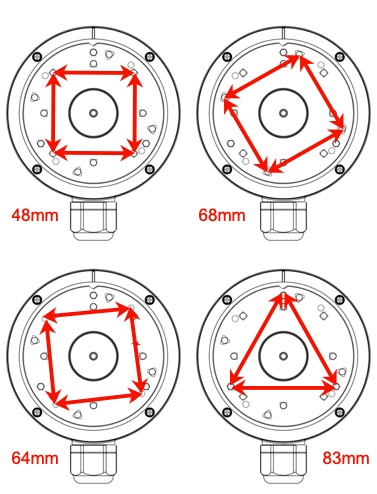
A secure mount ensures stability and optimal viewing angles for your security camera. Follow these steps to install correctly.
Attach the Mounting Bracket
- Position the wall template and mark screw holes carefully
- Drill pilot holes and insert anchors if mounting on drywall
- Secure the bracket with the provided screws
The bracket works on wood, metal, and masonry with correct hardware selection.
Install the Camera on the Bracket
- Slide the camera onto the bracket until it clicks
- Twist to lock into place securely
- Adjust the flexible neck for your desired angle
- Route the power cable neatly using the included cable clips
For ceiling mounts, enable image rotation in the app so video appears upright instead of upside down.
Power On and Pair Your AOQEE Camera
Now bring the camera online using Bluetooth-assisted setup. This phase connects your device to the app and your Wi-Fi network.
Power On the Camera
• Plug in the USB cable and power adapter to a nearby outlet
• Wait 10 to 20 seconds for the LED to flash blue
• Do not touch the camera during the boot-up process
If the LED does not flash, press the reset button for 5 seconds until it blinks.
Install the AOQEE App
- Open your phone camera and scan the QR code on the device
- Alternatively, search AOQEE in the App Store or Google Play
- Install and open the app on your smartphone
Ensure Bluetooth and location services are enabled on your phone. These permissions are required for initial pairing.
Connect via Bluetooth and Wi-Fi
This is the core setup phase. Follow these steps exactly to get your camera online.
Add Camera in the AOQEE App
- Tap the plus icon to add a new device
- Select the C1 model from the list
- Choose Bluetooth Connection mode when prompted
The app will detect your camera automatically within 10 seconds if Bluetooth is working.
Enter Your Wi-Fi Credentials
- When prompted, select your 2.4 GHz network from the list
- Enter your password carefully, noting that it is case sensitive
- Tap Connect and wait for the process to complete
Wait 60 to 90 seconds for the camera to register. The LED will turn solid blue when successful.
If connection fails, press and hold the reset button for 10 seconds, restart your phone Bluetooth, then re-scan the QR code and retry the setup process.
Configure Camera Settings for Best Performance

Once connected, personalize settings to get the most from your AOQEE security camera.
Rename Your Camera
• Go to device settings in the app
• Change the name to reflect location like Front Door or Backyard
• This helps identify feeds when adding multiple cameras
Verify Live View Works
• Open the main dashboard in the app
• Confirm live 2K video appears within seconds
• Check clarity, focus, and lighting response
If video lags, check Wi-Fi signal strength in the app. You should have 3 to 4 bars for smooth performance.
Test Two-Way Audio
- Tap the microphone or speaker icon in the app
- Speak into your phone clearly
- Listen for output from the camera speaker
Adjust speaker volume in Audio Settings if the output is too quiet.
Set Up Motion Detection Alerts
Stop false alerts and focus on real threats by configuring motion detection properly.
Configure Detection Zones
- Open Motion Settings in the app
- Choose Full Area to monitor the entire frame
- Or select Custom Zone to draw a box around key areas like driveways or entryways
Exclude busy zones like trees or streets to reduce unnecessary notifications.
Enable Person Detection
Reduce pet or shadow triggers with AI filtering for more relevant alerts.
- Turn on Person Detection in settings
- Set alerts to trigger only when a person is identified
- Adjust sensitivity to Medium for the best balance
The AOQEE C1 does not support vehicle detection, only person-based alerts.
Customize Night Vision Modes
Maximize visibility after dark with smart lighting options that suit your security needs.
Choose Your Lighting Mode
Go to Night Vision Settings and select one of these options:
• Auto Infrared Mode switches to black-and-white at night using stealth IR LEDs
• Intelligent Light Mode stays in IR until motion is detected, then turns on the front LED for color video during events
• Always On Mode keeps the LED bright 24/7 for continuous color recording and deterrence
• Light Timing Mode schedules lights like dusk to dawn to save energy
Toggle the status LED off in the app to avoid light pollution if needed.
Manage Storage and Recordings
Decide where your footage is saved, either locally on the microSD card or in the cloud.
Format the microSD Card
Even new cards need formatting before first use.
- Insert the card before completing setup
- In the app, go to Storage then Local Video and tap Format
- Wait for completion which usually takes under one minute
Reformat the card every 3 months to prevent errors and ensure reliable recording.
Choose Recording Mode
Select your preferred recording type in Recording Settings:
• Event Recording saves clips only when motion is detected
• Continuous Recording captures 24/7 footage in a loop overwrite
Recommended setup is Event Recording combined with Person Detection to save storage space while capturing important footage.
Set Up Cloud Backup
• Activate the 30-day free trial in the app under cloud settings
• After the trial, subscribe monthly for 30-day cloud history
• Access footage remotely even if the SD card fails
Use both local and cloud storage together for full redundancy.
Share Access with Family Members
Let family or staff monitor your camera safely with proper permission controls.
Invite Additional Users
- Tap Share in the device menu
- Enter the email or phone number of the person you want to add
- Assign permission level: View Only for watchers or Full Control for administrators
The admin retains ultimate control and can remove access at any time.
Dual-User Viewing Works Simultaneously
Two people can watch the live feed at the same time without issues.
• One person on phone, another on Alexa display
• No lag or disconnection occurs under normal Wi-Fi conditions
Optimize Privacy Settings
Protect sensitive areas and control when your camera is active.
Create Privacy Zones
Blur out unwanted views that you do not want recorded.
- Go to Privacy Mode and select Zone Masking
- Draw a box over areas like neighbor windows or private spaces
- The mask applies to both recordings and live view
Up to 3 privacy zones are supported.
Schedule Privacy On and Off
Automate camera disable times based on your routine.
• Example: Turn off at 8 AM when you leave for work, enable at 6 PM when you return home
• Useful for home offices or nanny cam situations
• Disable remotely with one tap whenever needed
Troubleshoot Common AOQEE Camera Issues
Fix problems fast with these proven solutions when your camera misbehaves.
No Lights When Camera is Docked
• Check that the power adapter is firmly plugged in
• Try a different outlet to rule out power issues
• Press the reset button and re-pair the device
Camera Goes Offline Frequently
Common causes include weak Wi-Fi signal, power interruption, or router issues.
• Move the camera closer to the router or add a Wi-Fi extender
• Ensure the power cable is not loose or damaged
• Reboot both your router and camera
In the app, go to Device Info and tap Reconnect Wi-Fi to refresh the connection.
microSD Card Not Recognized
- Remove and reinsert the card carefully
- Try another Class 10 or UHS-I card from a reputable brand
- Format the card in the app even if it works in other devices
Avoid cards over 128 GB or cards older than 2 years.
Delayed Motion Alerts
Improve response time by adjusting these settings.
• Set sensitivity to High for faster detection
• Enable Rich Notifications if you have a premium subscription
• Keep the phone app running in the background
With good signal, alerts arrive in under 5 seconds.
Maintain Peak Performance
Keep your AOQEE C1 working like new with regular maintenance.
Clean the Lens Monthly
• Wipe the lens gently with a microfiber cloth
• Remove dust, spider webs, or rain streaks
• This is critical for outdoor clarity, especially at night
Update Firmware Regularly
- In the app, go to Device Settings then System
- Tap Check for Updates
- Install updates during off-hours since the camera restarts
Updates improve stability, add features, and patch security bugs.
Test Siren and Alarms Monthly
Verify that security functions work properly.
• Trigger the manual siren from the app
• Walk into the detection zone to test auto alarm
• Confirm the volume is loud enough at approximately 90 dB
Use these features to deter trespassers or alert household members.
Unlock Advanced Features
Power users can access additional capabilities beyond basic setup.
Stream Locally via RTSP
For integration with NVRs or third-party systems without cloud dependency.
• Enable Local Streaming in Advanced Settings
• Use the standard RTSP protocol address provided in the app
• Ideal for privacy-focused users who want local-only recording
Sync Lighting with Schedules
Combine features for automated security.
• Set Intelligent Light Mode plus Motion Siren to activate together
• Schedule Privacy Mode off at sunset and on at sunrise
• Automate for hands-free security that runs on your schedule
Frequently Asked Questions About AOQEE Security Camera Setup
Does the AOQEE C1 support 5 GHz Wi-Fi?
No, the AOQEE C1 only supports 2.4 GHz Wi-Fi networks. It does not support 5 GHz connectivity. This is a common limitation for many budget security cameras, so ensure your router provides a 2.4 GHz band.
What size microSD card works best with AOQEE C1?
The camera supports microSD cards up to 128 GB. Use Class 10 or UHS-I cards from reputable brands like SanDisk or Samsung for reliable performance. Always format the card in the app before first use.
Why does my camera show as offline in the app?
This usually indicates a weak Wi-Fi signal or power interruption. Check that the camera is within range of your router, ensure the power cable is securely connected, and try restarting both the camera and your router.
Can two people view the camera feed at the same time?
Yes, the AOQEE C1 supports dual-user viewing. Two people can watch the live feed simultaneously from different devices without experiencing lag or disconnection under normal conditions.
How do I reduce false motion alerts?
Enable Person Detection to filter out alerts triggered by pets, shadows, or trees. You can also create custom detection zones to exclude busy areas and adjust sensitivity to Medium for the best balance.
Is cloud storage required for the AOQEE camera?
No, cloud storage is optional. The camera works perfectly with local microSD storage alone. Cloud storage provides a 30-day free trial and is useful for remote access if the SD card fails or is stolen.
Key Takeaways for AOQEE Security Camera Setup
The AOQEE C1 delivers excellent value with 2K resolution, dual lighting, and robust app controls, all for under $200. By following this guide, you ensure maximum uptime, clear footage, and smart alerting without frustration.
The most important steps are confirming 2.4 GHz Wi-Fi compatibility before purchase, inserting and formatting a quality microSD card before mounting, and enabling Person Detection to reduce false alerts. Regular maintenance including lens cleaning and firmware updates keeps your camera performing at its best for years to come.