

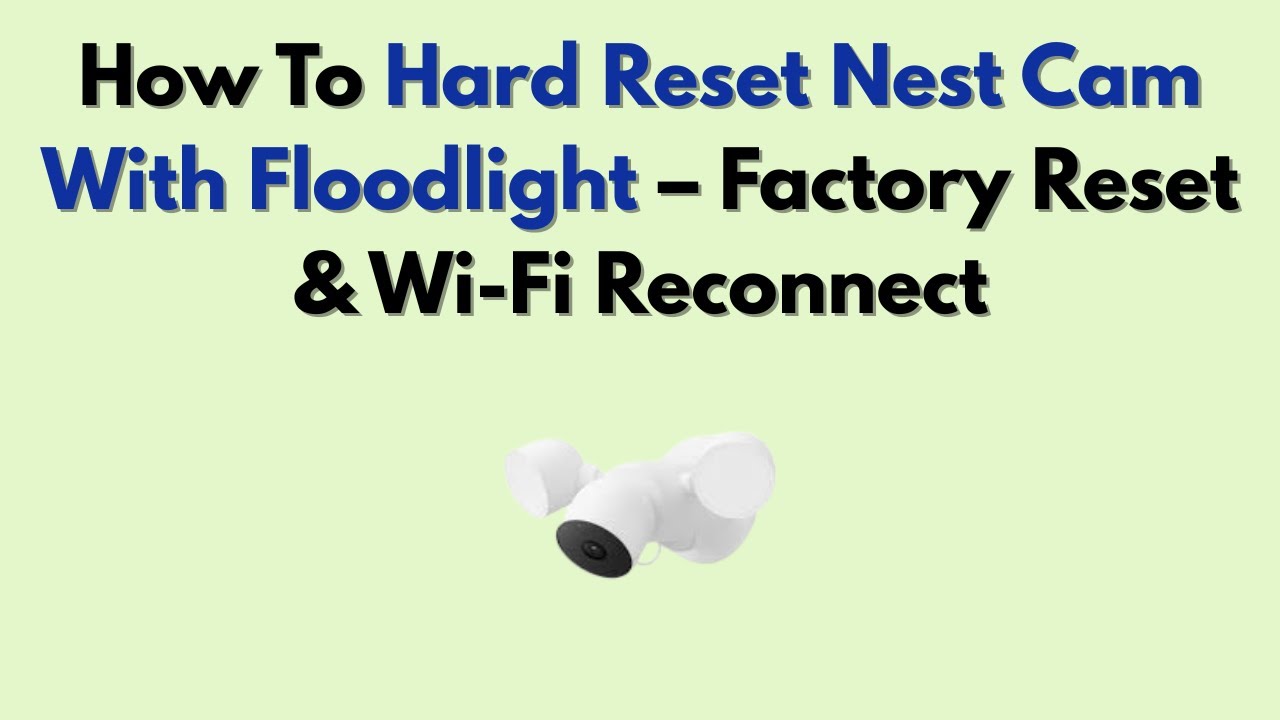
Is your Google Nest Camera with Flood Light acting up, stuck offline, or refusing to connect to Wi-Fi? A factory reset often resolves stubborn issues by wiping all custom settings and returning the device to its original state. This guide shows you exactly how to factory reset your Google Nest Camera with Flood Light so you can restore full functionality quickly.
Before starting, keep in mind that a factory reset erases Wi-Fi credentials, motion zones, and saved alerts. After the reset, you will need to set the camera up again through the Google Home app. If you are stuck in a setup loop, dealing with persistent connectivity drops, or preparing the device for a new owner, this process is your best solution.
Locate the Reset Button on Your Nest Camera

Find the Physical Reset Button
The Google Nest Camera with Flood Light has a small, recessed reset button near the power cable connection point. It is usually on the bottom or side of the base unit, just above where the power adapter plugs in. You will need a paperclip or pin to press it.
Visual cue: Look for a tiny hole labeled “Reset” or marked with a circular arrow icon. The button sits inside the housing and requires a firm, sustained press to activate.
Start the Factory Reset Process
Press and Hold for 10 Seconds
- Make sure the camera is powered on and connected to a working outlet.
- Insert a paperclip or SIM eject tool into the reset hole.
- Press and hold the button for at least 10 seconds. Do not release early.
After roughly 5 to 10 seconds, the status light will begin to change.
Watch for the Light Behavior
- Solid yellow light: Appears briefly during the reset.
- Blinking blue light: Indicates the camera is restarting.
- Rapid flashing blue light: Confirms the factory reset is complete and the camera is in setup mode.
Once you see the rapid blue flashing, release the button. The camera will reboot and appear as a new device in the Google Home app.
Confirm the Reset in the Google Home App
:max_bytes(150000):strip_icc()/remove-device-google-home-c20165c003d24c09b4c4364a10bf900b.png)
Remove the Old Device Entry
If the camera still appears in your Google Home app after the reset, remove it to prevent pairing conflicts.
- Open the Google Home app.
- Tap the device card for your Nest Camera.
- Tap the settings gear in the top-right corner.
- Scroll down and select Remove Device.
- Confirm the deletion.
Set Up the Camera as New
After removing the old entry, add the camera again.
- Tap the Add button (+ icon) in the app.
- Select Set up device, then choose Have something already set up?
- Follow the on-screen prompts to reconnect.
- Scan the QR code on the device or packaging when prompted.
- Reconnect to Wi-Fi and reapply your preferences.
Pro Tip: During re-setup, confirm that your phone and camera are on the same 2.4 GHz Wi-Fi network. The Nest Flood Light camera does not support 5 GHz connections.
Troubleshoot a Failed Reset
No Light Change After Pressing Reset
If the status light does not turn yellow or flash blue, try these steps:
- Check the power connection and confirm the camera is receiving power from the original adapter.
- Try a different outlet or transformer to rule out a faulty power supply.
- Wait 30 seconds, then repeat the 10-second reset.
Camera Will Not Enter Setup Mode
If the camera refuses to enter pairing mode:
- Unplug the camera for 10 seconds, then plug it back in.
- Wait 1 minute for the device to fully boot.
- Repeat the 10-second reset.
- Watch for rapid blue flashing, which confirms success.
When a Factory Reset Makes Sense
Fix Persistent Wi-Fi Connection Failures
If your Nest Camera frequently disconnects or shows “Offline,” a reset clears corrupted network data. After resetting, reconnect to a stable 2.4 GHz network within range.
Break Out of a Setup Loop
Nest cameras can occasionally get stuck in setup loops. A factory reset clears the cycle and allows a clean pairing.
Prepare the Camera for a New Owner or Location
Always factory reset before selling or relocating the camera. This step protects your privacy by removing account links, saved video history, and network data.
Recover from App Sync Errors
If the Google Home app fails to recognize the camera or shows outdated status, a reset forces a fresh sync between the device and your account.
Prevent Problems After the Reset
Install Firmware Updates During Setup
The Google Home app automatically checks for the latest firmware during re-setup. Do not skip these updates, since they fix bugs and strengthen security.
Re-enable Key Security Features
After setup, revisit your settings to restore important features:
- Turn on 24/7 recording if you have a Nest Aware subscription.
- Adjust motion and sound sensitivity to match your environment.
- Reconfigure floodlight behavior (dusk-to-dawn, motion-activated, or scheduled).
- Set up privacy zones to block out sensitive areas.
Factory Reset vs. Restart: Know the Difference

Restart: Quick Fix for Minor Glitches
- How to do it: Unplug the camera, wait 10 seconds, plug it back in.
- Best for: Slow performance or temporary offline status.
- Effect: Clears temporary glitches without erasing settings.
Factory Reset: Full System Restore
- How to do it: Hold the reset button for 10 or more seconds.
- Best for: Wi-Fi issues, setup failures, or preparing for a new owner.
- Effect: Erases all data and returns the camera to factory defaults.
Expert Note: Try a restart first. Only move to a factory reset if the problem continues.
Final Tips for a Smooth Reset
- Use the original power supply. Third-party adapters may not deliver enough power for a reset.
- Keep the camera within 15 feet of your router during re-setup for the strongest signal.
- Avoid Wi-Fi extenders or mesh networks unless fully compatible with Nest devices.
- Give the camera a clear name during setup, such as “Front Yard Camera,” to keep your devices organized.
Frequently Asked Questions About Factory Resetting the Nest Camera with Flood Light
How long do I hold the reset button on a Nest Camera with Flood Light?
Hold the reset button for at least 10 seconds. Release only when you see the rapid blue flashing light, which signals that the factory reset is complete.
Will a factory reset delete my saved videos?
Yes. A factory reset removes all data stored on the camera, including account links and settings. Any video history saved to the cloud through Nest Aware should remain accessible through your Google account.
Why is my Nest Camera stuck in setup mode after a reset?
Setup loops often happen when the phone and camera are on different Wi-Fi networks or when the firmware is outdated. Confirm both devices use the same 2.4 GHz network, update the Google Home app, and try the setup again.
Can I reset the Nest Camera with Flood Light without the app?
Yes. The physical reset button works without the Google Home app. However, you will still need the app to complete setup and reconnect the camera to your Wi-Fi network afterward.
Does the Nest Flood Light camera support 5 GHz Wi-Fi?
No. The Google Nest Camera with Flood Light only supports 2.4 GHz Wi-Fi networks. Connecting to a 5 GHz network will cause setup and connectivity failures.
How do I know the factory reset was successful?
The rapid flashing blue light confirms a successful reset. At that point, the camera is ready to pair as a new device through the Google Home app.
Key Takeaways for Resetting Your Google Nest Camera with Flood Light
A factory reset is the most reliable way to fix deep-seated issues with your Google Nest Camera with Flood Light. Start by locating the recessed reset button near the power connection, then press and hold it for at least 10 seconds until you see the rapid blue flashing light. Remove the old device entry in the Google Home app, then set the camera up again on a 2.4 GHz network. If problems persist, check your power supply and repeat the reset after a full power cycle. With these steps, you can restore full functionality and get your camera back online in just a few minutes.