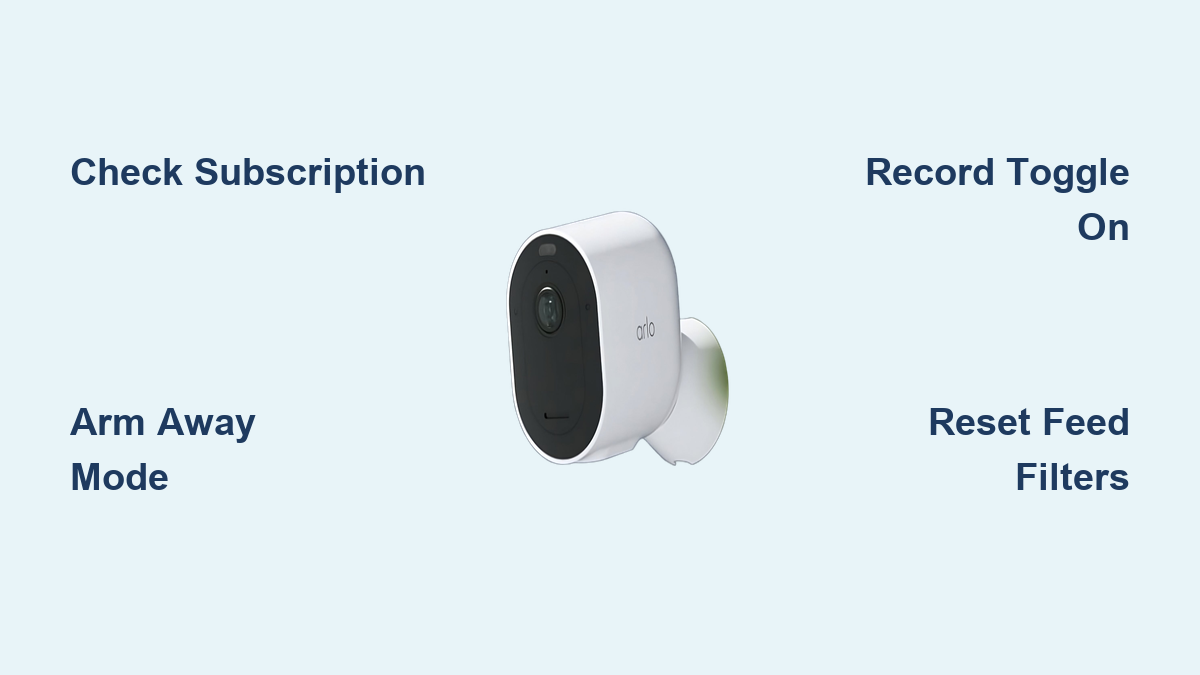

You’re not alone if your Arlo security camera stopped recording. Thousands of users report sudden recording failures despite seeing motion alerts or live video working perfectly. The issue often isn’t hardware failure, but hidden software settings, subscription lapses, or model-specific limitations. This guide provides proven diagnostic steps, model-specific fixes, and real user insights to get your Arlo camera recording again fast.
Whether you’re using a legacy Arlo Pro or a newer Essential model, recording stops silently when rules are misconfigured, subscriptions expire, or firmware updates reset critical settings. We’ll show you how to diagnose the root cause and apply the right fix without unnecessary resets or costly replacements.
Check Subscription Status First
Your Arlo camera may be working perfectly, but if your subscription lapsed, no videos are saved to the cloud.
Confirm Active Cloud Plan
Open the Arlo Secure app and navigate to Settings > Subscription. Verify that your Arlo Secure plan is active and that any free trial hasn’t expired. Check that legacy device eligibility is confirmed if you own older cameras.
Critical: Arlo Essential, Baby, and Q series require a paid plan or valid trial for cloud recording. No exceptions apply.
Legacy Device Free Recording Confusion
Arlo officially states that legacy devices should continue to receive free 7-day cloud recording according to knowledge base article KB000062312. However, many users report sudden loss of free recording after app updates, redirects to paid plans, and inconsistent enforcement across accounts.
If you own an Arlo Pro, Pro 2, or Q series, ensure your account still qualifies for free recording. Contact Arlo support and reference KB000062312 to restore access if you’ve been blocked.
Verify Camera Mode and Recording Rules

Even with power and Wi-Fi working, no recording rules means no recording will occur.
Arm Mode Must Be Active
Ensure your camera is set to Arm Away or a custom armed mode. Standby or Disarmed modes completely disable all recording functionality.
Pro Tip: Arlo Baby and older models only record in Arm Away mode with no custom rules allowed.
Check or Add Recording Rules
Open the Arlo Secure app and tap Routines > Modes tab. Select your active mode such as Arm Away. Look for your camera’s rule that includes motion detection, audio detection if enabled, and Record a video toggled ON.
If the rule is missing, tap Add Device Rule, select your camera, confirm Record a video is enabled, and save your changes.
User Alert: App or iOS updates often disable the Record a video setting automatically. Recheck this after every update.
Fix Hidden Recording Visibility Issues
Your camera might be recording, but you can’t see the footage due to filter settings.
Reset Feed Filters
Go to Feed in the Arlo app and tap the three-dot menu > Feed Settings. Set Event Types to include Motion, Audio, and Person. Ensure all devices are selected. Tap Restore Defaults if you’re unsure. Save your changes.
Note: Filtered feeds hide recordings they don’t stop them. Users often think no recording occurred when videos exist but are filtered out of view.
Optimize Motion and Audio Detection
Low sensitivity or misconfigured AI settings prevent recording triggers from activating.
Increase Motion Sensitivity
In the Arlo app, go to Devices > select your camera > Settings gear icon. Navigate to Default Mode Settings and set Motion Sensitivity to 70-80 for testing purposes. If supported, raise Audio Sensitivity to 70 or higher.
Test by walking in front of the camera. If no alert triggers, your sensitivity setting is too low.
AI Detection Settings
Arlo Pro 5S, Ultra 2, and Essential models use AI to filter humans, animals, and vehicles. These filters can miss events if set too narrowly.
To test, temporarily disable AI filters and switch to basic motion detection. See if recording resumes.
User Report: One user noted their camera alerts for leaves but never records people, indicating AI filter issues.
Configure Activity Zones Correctly

Poor zone setup leads to missed motion detection and no recording triggers.
Set Detection Areas
In the Arlo app, go to Devices > select camera > Settings > Zones > Activity. Tap plus to draw a zone covering key entry points like doors and driveways. Avoid including areas with moving trees, pets, or wind-blown objects.
Zone Management Tips
Resize zones by dragging corners. Reposition by dragging inside the zone. Rename using the pencil icon. Delete by swiping left on the zone name. Always save after making changes.
Pro Tip: Position your camera so movement crosses the frame side-to-side rather than head-on for better pixel change detection.
Power and Connectivity Checks
Even minor power or network issues break the recording chain completely.
Battery-Powered Models
Low battery disables recording even if live view works. Check battery status in the app. If battery is below 20 percent, charge immediately. Use a solar panel for outdoor units and verify compatibility.
Warning: Cameras enter low-power mode when battery drops, and recording stops completely.
Wi-Fi Signal Strength
Older models like Pro and Q require the 2.4 GHz band. Newer models support 5 GHz. Signal strength should exceed negative 70 dBm for stable performance.
Use a Wi-Fi analyzer app to test signal. Move the camera closer to the router or base station. Avoid thick walls and metal obstructions.
Visual Clue: Slow blinking blue LED indicates a sync or connectivity issue.
Update Firmware and App
Outdated software causes approximately 15 percent of recording failures.
Update Camera Firmware
In the Arlo app, go to Settings > Device Settings, select your camera, and check for Firmware Update. Install any available updates, then restart the camera.
Update Arlo App
Go to Google Play or the App Store and search for Arlo Secure. Update to version 4.0 or higher for built-in troubleshooter, AI diagnostics, and predictive alerts.
Reboot After Update
Restart your camera via the app. Power cycle your base station by unplugging for 10 seconds and replugging. Wait two minutes for full reboot.
User Experience: Many users report recording stops after iOS updates. Rebooting and rechecking rules often fixes this.
Local Recording: Avoid Subscription Traps

Use local storage to record without a paid Arlo Secure plan.
DSA Requirements
The VMB4540 SmartHub supports Direct Storage Access and is required for Arlo Essential local recording. The VMB5000 SmartHub supports DSA plus microSD. The VMB4000 base station does not support DSA and cannot record Essential models locally. The VMB4500 base station also lacks DSA support despite having a USB port.
Critical: Even with a USB drive connected, VMB4000 blocks local recording for newer cameras.
Set Up Local Storage
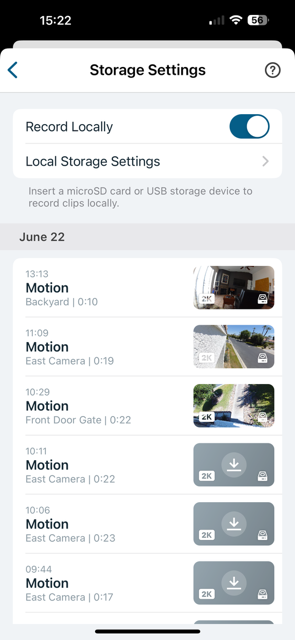
Insert a FAT32-formatted USB drive up to 2TB into your DSA-supported hub. In the Arlo app, go to Settings > Storage and confirm the drive is recognized. Assign recording rules to local storage and test with a manual trigger.
Maintenance Tips
Format your drive once per year. Use high-endurance SD cards for 24/7 recording. Avoid third-party formatting tools.
Reboot and Reset When All Else Fails
Clear glitches or corrupted settings through restart procedures.
Soft Reset
In the Arlo app, go to Devices > select camera > gear icon > Restart. Wait 60-90 seconds and test recording.
Fixes: This resolves temporary sync issues and rule-processing errors.
Factory Reset
Warning: This deletes all recordings both local and cloud, removes the camera from your account, and requires full re-setup.
Unmount the camera and press the Sync button for 15 or more seconds. Release when the LED blinks amber three times. In the app, remove the device and re-add it via the setup wizard.
Use this only if rules, updates, and reboots fail, especially after suspected configuration corruption.
Post-Update Recording Failures
iOS or app updates often break recording functionality unexpectedly.
Common Post-Update Issues
Recording stops after iOS updates because the app forces new subscription rules. The Record a video toggle gets turned off by firmware updates. Arlo Baby and legacy models get dropped from support. UI changes hide settings or move mode rules to new locations.
Damage Control After Update
Back up recordings before updating. Document your settings with screenshots. Recheck the Record a video toggle. Verify subscription status. Contact Arlo support if features are missing.
User Sentiment: One Reddit user stated Arlo did a software update and no longer supports older models that don’t generate revenue.
Model-Specific Fixes
Arlo Essential Series
These cameras require Arlo Secure or DSA for recording. You must use VMB4540 or VMB5000 for local recording. There is no physical record button, so recording relies entirely on app rules.
Fix: Pair with VMB4540 plus a USB drive to avoid subscription costs.
Arlo Pro and Pro 2
These models include free 7-day cloud storage if eligible. They support microSD cards for local backup. They remain more stable after updates than newer models.
Fix: If recording stops, check rules and subscription status. A reset is rarely needed.
Arlo Baby
This legacy model should work with free cloud, but often fails after updates. It only records in Arm Away mode and lacks custom mode support. It may not be fully supported in the latest app versions.
Fix: Keep the camera in Arm Away, avoid updates, and back up videos frequently.
Final Checklist: 15-Step Fix
Confirm your subscription or trial status is active. Set your mode to Arm Away. Ensure Record a video is toggled ON. Reset Feed Settings to show all events. Increase motion and audio sensitivity. Configure Activity Zones properly. Restart your camera via the app. Check that battery level exceeds 20 percent. Verify Wi-Fi signal is stronger than negative 70 dBm. Confirm your base station supports DSA. Test USB or SD card recognition in Storage settings. Update firmware and the Arlo app. Run the built-in troubleshooter if using version 4.0 or higher. Factory reset if the issue remains unresolved. Contact Arlo Support with logs and model details.
Strategic Recommendations
For Long-Term Users
Back up cloud videos regularly. Document settings before updates. Consider migrating to local storage or alternative brands like Eufy or Reolink.
For Cost-Conscious Users
Avoid subscription traps by using VMB4540 plus a USB drive for free local recording. Explore one-time purchase systems that don’t require monthly fees.
For New Installations
Skip VMB4000 and VMB4500 because they lack DSA support. Choose VMB4540 or VMB5000 for future-proofing. Use microSD or USB to reduce cloud dependency.
Pro Insight: Pair Arlo Essential with VMB4540 plus a 256GB USB drive for zero monthly fees.
Frequently Asked Questions About Arlo Security Camera Not Recording
Why does my Arlo camera detect motion but not record?
This usually happens when the Record a video toggle is disabled in your mode rules. Check your Routines > Modes settings and ensure recording is enabled for your active mode. App updates sometimes disable this setting without warning.
Do Arlo cameras work without a subscription?
Arlo Pro and Pro 2 include free 7-day cloud recording for legacy devices. Arlo Essential and newer models require either an Arlo Secure subscription or local storage via a DSA-supported base station. Without either, recording won’t work.
How do I fix recording after an Arlo app update?
Start by rebooting your camera and base station. Recheck your mode rules, especially the Record a video toggle. Verify your subscription status hasn’t changed. If issues persist, restore default settings and reconfigure your rules.
Which Arlo base station supports local recording?
The VMB4540 SmartHub and VMB5000 SmartHub support Direct Storage Access for local recording without a subscription. The VMB4000 and VMB4500 do not support DSA and cannot record newer camera models locally.
Why did my free cloud recording stop on legacy Arlo devices?
Arlo has inconsistently enforced free cloud policies for legacy devices. Some users report losing access despite official statements that free recording should continue. Contact Arlo support and reference KB000062312 to dispute the loss.
Can I use SD cards with Arlo cameras for local recording?
Arlo Pro and Pro 2 support microSD cards directly in the camera. Arlo Essential models require a VMB4540 or VMB5000 SmartHub with a connected USB drive. SD cards must be FAT32 formatted and recognized in the app’s Storage settings.
Key Takeaways for Fixing Your Arlo Camera
The most common causes of Arlo recording failures are subscription expiration, disabled recording rules, and app updates that reset settings. Always verify your Arlo Secure plan status first, then confirm your camera is in Arm Away mode with Record a video enabled. For subscription-free recording, use a VMB4540 or VMB5000 hub with a USB drive. Update firmware and the Arlo app regularly, but always recheck your settings after any update. If all else fails, a factory reset often resolves deep configuration issues.