
Installing an Arlo security camera delivers powerful home protection with smart alerts, clear video, and flexible mounting options. Whether you’re setting up the Arlo Essential, Pro 5S, or Original Wire-Free model, this guide walks you through every step from charging the battery to optimizing motion detection. With proper setup, your Arlo camera can provide crystal-clear HD footage, AI-powered alerts, and reliable 24/7 monitoring. You’ll learn how to pair your camera, connect to Wi-Fi, mount securely, and avoid common mistakes all within 15 to 25 minutes.
Fully Charge Your Arlo Camera Before Setup
Before any installation begins, ensure your Arlo camera has a full charge. A low battery can interrupt pairing and prevent successful Wi-Fi connection during setup.
Charging the Essential and Pro 5S Models
Use the included USB cable and power adapter to charge your camera. Connect the camera to power and wait for the LED to turn solid blue before proceeding. The Arlo Essential second and third generation typically requires 2 to 4 hours for a full charge. The Arlo Pro 5S rechargeable battery pack should be fully charged before mounting to avoid interruptions during initial setup.
Always complete pre-charging before beginning the installation process. Even if the camera powers on, a partial charge increases the risk of setup failure and may cause connectivity issues later.
Download the Arlo App for Installation
The Arlo Secure App for newer models or the Arlo App for older models is essential for installation, live viewing, and customization. You cannot set up your camera without this application.
Installing the Correct App Version
Search for Arlo in the App Store if you use iOS or in Google Play for Android devices. Desktop users can visit arlo.netgear.com to access the web-based platform. Make sure you download the latest version of the app before starting setup.
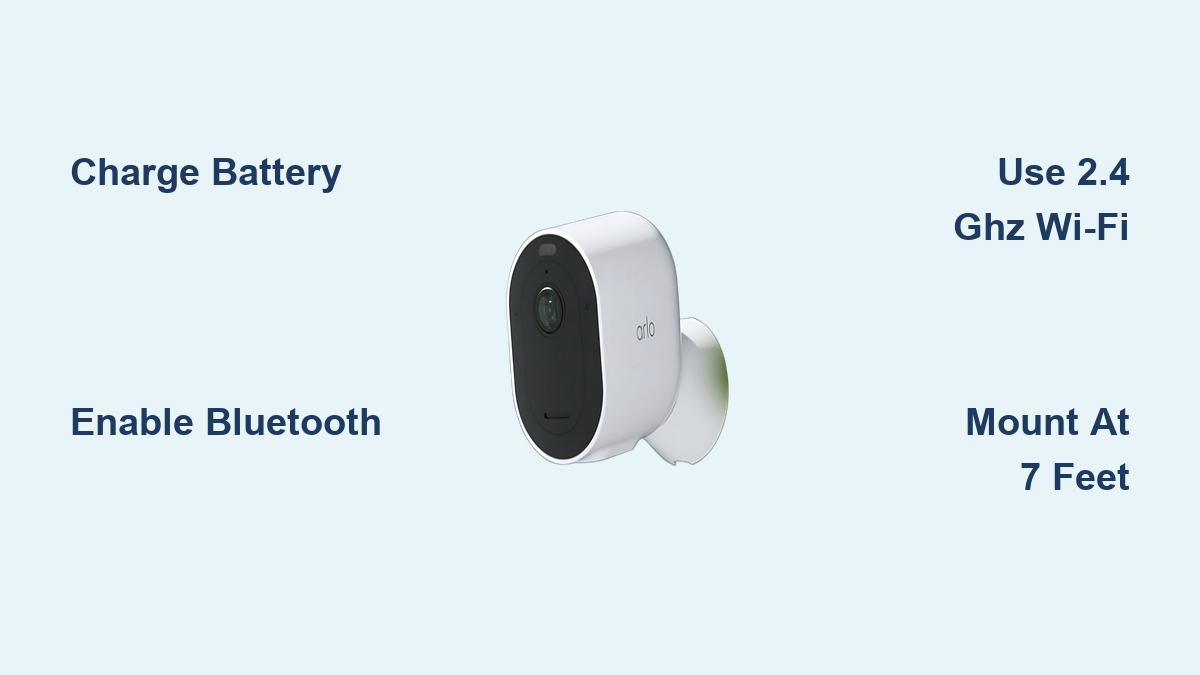
Enable Bluetooth on your mobile device during initial setup. The Arlo Essential and Pro 5S models require Bluetooth to detect and pair the camera before Wi-Fi connection. Without Bluetooth enabled, the app will not find your camera during the pairing process.
Create or Log Into Your Arlo Account
You need an Arlo account to manage devices, access recordings, and receive alerts. This account serves as your central hub for all camera management.
New User Account Setup
Open the app and tap New System Setup. Enter your email address and create a strong password. Check your inbox for a verification link and confirm your email address to unlock full access to cloud features. Without verification, your access to recorded footage and smart features will be blocked.
Existing Arlo users should tap Devices, then the plus icon, and select Add Camera. The app will guide you through the pairing process for the new device.
Pair Your Arlo Camera With the App

The pairing method depends on your model. Original Arlo cameras use base station sync while Essential and Pro 5S models use Bluetooth pairing.
Sync Original Arlo to Base Station
For Original Arlo and some Pro models with a base station, plug the base station into power and connect it to your router via Ethernet. Wait for the base station LED to stabilize, then bring the camera within 3 feet of the base station. Press the sync button on the base station until the LED blinks green, then press the sync button on the camera. A rapid blue LED blink indicates success, while an orange blink means you should retry the process.
Complete syncing while the camera is near the base station before mounting it in its final location.
Bluetooth Pairing for Essential and Pro 5S
For Arlo Essential and Pro 5S models that connect directly via Wi-Fi, open the Arlo Secure app and tap Devices, then the plus icon, and select Cameras. Choose your camera model from the list. Press and hold the pairing button on top of the camera for 3 seconds and wait for the LED to flash blue. The app will automatically detect the camera via Bluetooth.
If the camera is not detected, restart the camera and ensure Bluetooth is turned on in your phone settings.
Connect to 2.4 GHz Wi-Fi Network

Arlo cameras support only 2.4 GHz Wi-Fi networks, not 5 GHz. This is critical for establishing a stable connection.
Selecting Your Network
After pairing, the app prompts you to choose a Wi-Fi network. Pick your 2.4 GHz network from the available options and enter your Wi-Fi password. Use the Locate My Password feature in the app to copy your password from phone settings if needed. Wait 1 to 3 minutes for the camera to connect.
Check signal strength at the camera location using a Wi-Fi analyzer app before final mounting. Aim for at least negative 70 dBm for reliable performance. Move the camera closer to the router during setup if needed, and avoid thick walls, metal barriers, or appliances like microwaves that can interfere with the signal.
Mount Your Camera Securely
Proper mounting ensures stability, optimal viewing angles, and weather resistance for outdoor cameras.
Choosing the Right Location
Mount the camera at least 7 feet above ground for better motion detection. Angle the camera slightly downward to capture faces and full-body movement. Avoid placing the camera directly facing windows or glass, which can confuse infrared sensors and trigger false motion alerts.
Mounting by Model
The Arlo Essential uses a slide-in wall plate. Align the arrows on the camera with the plate, then slide the camera down until it clicks into place. The Arlo Pro 5S uses a screw-mounted bracket. Drill pilot holes, secure the bracket with the provided screws, then attach the camera. The Original Arlo uses a magnetic mount or tabletop base for flexible placement.
Use the included screws and drywall anchors for indoor installations. Insert anchors before screwing in to prevent pull-out. For outdoor magnetic mounts exposed to wind, apply commercial adhesive rated for at least 6 pounds of hold for extra security.
Update Firmware and Name Your Camera
After connection, the system checks for firmware updates. Do not skip this step as updates include security patches and performance improvements.
Firmware Update Process
The app notifies you if an update is available. Wait 2 to 5 minutes for the download and installation to complete. Do not power off the camera during the update process. A failed update may require a factory reset to recover.
Assign a custom name to each camera such as Front Door or Backyard. This helps identify alerts and switch between views quickly in the app.
Optimize Motion Detection and Alerts
Fine-tune your camera settings to reduce false alarms and focus on real threats.
Setting Activity Zones
Go to Settings and select Activity Zones. Draw zones where motion should trigger alerts, such as the driveway or porch. Exclude areas with trees or sidewalks that might cause unnecessary notifications. This significantly reduces false alerts from pets or passing vehicles.
Adjusting Power Management
Navigate to Device Settings and select Power Management. Choose modes like reduced video resolution, scheduled recording, or delayed upload to extend battery life. This is especially useful in low-traffic areas where constant recording is unnecessary.
Customize notifications by setting quiet hours or enabling specific alert types. Press and hold a notification to mute alerts temporarily when you need no disturbances.
Verify Installation and Test Live View
Finalize setup by confirming everything works properly through a complete system check.
Post-Installation Checklist
Confirm the battery is fully charged with a solid blue LED. Verify successful pairing via the app or base station. Check that the camera connects to 2.4 GHz Wi-Fi with strong signal. Ensure firmware is updated to the latest version. Confirm the camera is named in the app. Test that the mount is secure and the angle is optimized. Verify activity zones are configured. Confirm email is verified.
Open the Devices tab in the app and tap your camera to view the live video feed. Check for clear picture, proper field of view, and audio if enabled. You now have a fully operational Arlo camera.
Activate Free Trial and Cloud Features
All new users receive access to 7 days of free cloud recordings or a free trial of Arlo Secure depending on your model.
Benefits of Arlo Secure
Arlo Secure provides up to 60 days of cloud storage, AI-powered alerts for people, vehicles, and packages, activity zones customization, one-touch emergency response, and extended warranty coverage. Use the trial period to test smart features before deciding whether to subscribe.
Troubleshoot Common Installation Issues

Even with careful setup, problems can occur. Here is how to fix them quickly.
Camera Not Detected During Pairing
This issue typically occurs when Bluetooth is off, the battery is dead, or the camera is out of range. Charge the camera, enable Bluetooth on your phone, and move closer to the device during pairing.
Orange LED Blinking on Original Arlo
An orange blink indicates sync failure with the base station. Re-sync the camera and base station, keeping them within 3 feet of each other during the process.
Weak Wi-Fi Signal After Installation
Weak signal results from the camera being too far from the router or physical barriers blocking the connection. Use a Wi-Fi extender or relocate the camera to a position with stronger signal.
False Motion Alerts
Poor camera angle or unfiltered activity zones cause false alerts. Adjust the camera angle and set specific activity zones to exclude irrelevant areas.
Rapid Battery Drain
Frequent motion triggers or weak Wi-Fi cause batteries to drain quickly. Improve Wi-Fi signal, reduce motion sensitivity, or enable power-saving mode in device settings.
Firmware Update Fails
Internet interruption during the update causes failure. Restart your router and retry the firmware update.
Contact Arlo 24/7 Support if issues persist after trying these solutions.
Maintain and Optimize Long-Term Performance
Keep your Arlo camera running smoothly with routine care and maintenance.
Regular Cleaning and Inspection
Wipe the lens with a microfiber cloth monthly to maintain clear video quality. Check mount stability every 3 to 6 months, especially for outdoor installations. Remove spider webs, dirt, or debris that might block the camera view.
Battery Replacement Schedule
Rechargeable batteries typically last 2 to 3 years. Replace batteries when charge time shortens significantly or capacity drops noticeably. Enable auto-updates in the app to ensure your camera always has the latest security patches and features.
Frequently Asked Questions About Arlo Security Camera Installation
How long does it take to install an Arlo camera?
Most users complete installation in 15 to 25 minutes. Experienced users with the Original Arlo system can finish in under 10 minutes.
Can I use 5 GHz Wi-Fi with my Arlo camera?
No, Arlo cameras require 2.4 GHz Wi-Fi. The 5 GHz band is not supported for setup or operation.
Do I need a base station for my Arlo camera?
Base stations are required only for Original Arlo and some Pro models. Arlo Essential and Pro 5S cameras connect directly to Wi-Fi without a base station.
Where is the best place to mount an Arlo security camera?
Mount cameras at least 7 feet high, angled slightly downward, with clear line of sight and strong Wi-Fi signal. Avoid facing windows or glass.
How do I reduce false motion alerts on my Arlo camera?
Set up activity zones in the app to define specific areas for motion detection. Exclude areas with trees, roads, or other sources of irrelevant movement.
What should I do if my Arlo camera won’t pair with the app?
Ensure Bluetooth is enabled on your phone, charge the battery fully, and keep the camera within close range during pairing. Restart both the camera and phone if problems persist.
Key Takeaways for Successful Arlo Installation
Always charge the camera fully before beginning setup. Use the latest version of the Arlo Secure or Arlo app. Enable Bluetooth on your mobile device for initial pairing. Connect to 2.4 GHz Wi-Fi only. Complete pairing before final mounting. Verify strong Wi-Fi signal at the installation site. Align arrows correctly when mounting Essential series cameras. Use drywall anchors for secure indoor mounting. Optimize motion detection by positioning cameras at least 7 feet high and angled downward. Customize activity zones to reduce false alerts. Activate the free trial of Arlo Secure for advanced features. Verify your email to unlock full functionality.
With this guide, you have installed your Arlo camera like a professional. Enjoy peace of mind with 24/7 intelligent monitoring, crisp video, and customizable alerts all from your smartphone.